> ## Documentation Index
> Fetch the complete documentation index at: https://docs.bayboard.io/llms.txt
> Use this file to discover all available pages before exploring further.
# Run Auto-Schedule
> Place ready Unassigned jobs into open technician time in one run.
Owner / Admin, General Manager, and Service Advisor can run Auto-Schedule. The button is hidden for Foreman and Technician, and for everyone while billing is past due.
## Which jobs are ready
Auto-Schedule only looks at the Unassigned panel, the list on the right side of the board. A job counts as ready when:
* Its status is In Queue, or
* Its status is Waiting on Parts, the parts ETA is today or earlier, and the slot is no earlier than the parts-ready hour (default 10:00 AM).
Jobs already on the board are never moved. See [Job statuses](/schedule-board/job-statuses) for what each status means.
## Run it
Use the date button or the day chevrons in the top bar. You cannot run Auto-Schedule on a past day. If you try, a toast reads "Past days are read-only."
The amber **Auto Schedule** button is in the top bar. If the Unassigned panel is empty, a toast reads "Nothing to auto-schedule. Unassigned is empty."
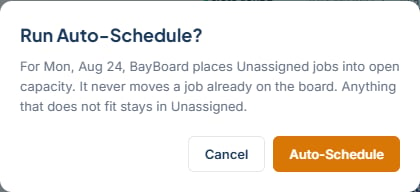
The dialog is titled "Run Auto-Schedule?" and reads: "For \[Wed, Aug 12], BayBoard places Unassigned jobs into open capacity. It never moves a job already on the board. Anything that does not fit stays in Unassigned."
 A progress panel titled "Auto-Scheduler" shows "Reviewing \[N] unassigned jobs…" and walks through five steps: Reading the day's capacity, Checking hard requirements, Weighing your scheduling priorities, Finding the best fit for each job, and Setting aside what will not fit.
A toast reports the outcome in one of three forms:
* "\[n] scheduled, \[m] still in Unassigned"
* "\[n] jobs scheduled"
* "Nothing to schedule. No Unassigned job was ready to place."
Each placed card shows a green ring on the board for 6 seconds so you can see where jobs landed.
A single run places at most 200 jobs. If more were ready, run it again.
## Jobs that did not fit
A job that stays in Unassigned gets an amber chip that reads "Didn't fit:" followed by a reason.
| Reason | What it means | What to do |
| ------------------------ | ----------------------------------------------------------------------------- | ------------------------------------------------------------------------------------------------------------------------------------------------------------------------------------------------------------------------------ |
| the shop is closed | The day you are viewing is a closed day, so nothing was placed. | Move to an open day and run again. |
| waiting on parts, no ETA | The job is Waiting on Parts with no Parts ETA date. | Open the job, set the Parts ETA date, and run again on or after that day. |
| parts due \[date] | The Parts ETA is later than the day you are viewing. | Run again on or after the ETA date. |
| no qualified tech | Every technician has this job type on their AVOID (IF POSSIBLE) list. | Adjust the avoid lists in the [tech capability profile](/team-and-roles/tech-capability-profile), or pick a Technician for the job without a start time so it is tagged "For" that tech. A "For" tag overrides the avoid list. |
| no open capacity | A qualified technician exists, but no open block fits the job before closing. | Free up time, shorten the Est. Hours, or try another day. |
Service Advisors see "no open capacity" in place of "no qualified tech". The chip clears when the job is edited or the next run happens.
## Undo a run
The result toast has an **Undo** action. Undo moves the placed jobs back to Unassigned and reports one of:
* "Undid \[n] jobs"
* "Undid \[n] of \[total] · \[m] were changed since the run" when some placed jobs were edited or moved after the run
* "Nothing to undo. Every job changed since the run."
Auto-Schedule is deterministic. If you undo and run again on the same list without changing anything, you get the same placements.
## Related
* [Scheduling preferences](/auto-scheduler/scheduling-preferences)
* [Carry Forward and Reset Day](/schedule-board/carry-forward-and-reset-day)
* [Unassigned jobs](/schedule-board/unassigned-jobs)
## Related topics
- [Auto-Scheduler](/auto-scheduler.md)
- [Scheduling preferences](/auto-scheduler/scheduling-preferences.md)
- [Users and access](/users-and-access.md)
- [Carry Forward and Reset Day](/schedule-board/carry-forward-and-reset-day.md)
- [Assign a job](/schedule-board/assign-a-job.md)
A progress panel titled "Auto-Scheduler" shows "Reviewing \[N] unassigned jobs…" and walks through five steps: Reading the day's capacity, Checking hard requirements, Weighing your scheduling priorities, Finding the best fit for each job, and Setting aside what will not fit.
A toast reports the outcome in one of three forms:
* "\[n] scheduled, \[m] still in Unassigned"
* "\[n] jobs scheduled"
* "Nothing to schedule. No Unassigned job was ready to place."
Each placed card shows a green ring on the board for 6 seconds so you can see where jobs landed.
A single run places at most 200 jobs. If more were ready, run it again.
## Jobs that did not fit
A job that stays in Unassigned gets an amber chip that reads "Didn't fit:" followed by a reason.
| Reason | What it means | What to do |
| ------------------------ | ----------------------------------------------------------------------------- | ------------------------------------------------------------------------------------------------------------------------------------------------------------------------------------------------------------------------------ |
| the shop is closed | The day you are viewing is a closed day, so nothing was placed. | Move to an open day and run again. |
| waiting on parts, no ETA | The job is Waiting on Parts with no Parts ETA date. | Open the job, set the Parts ETA date, and run again on or after that day. |
| parts due \[date] | The Parts ETA is later than the day you are viewing. | Run again on or after the ETA date. |
| no qualified tech | Every technician has this job type on their AVOID (IF POSSIBLE) list. | Adjust the avoid lists in the [tech capability profile](/team-and-roles/tech-capability-profile), or pick a Technician for the job without a start time so it is tagged "For" that tech. A "For" tag overrides the avoid list. |
| no open capacity | A qualified technician exists, but no open block fits the job before closing. | Free up time, shorten the Est. Hours, or try another day. |
Service Advisors see "no open capacity" in place of "no qualified tech". The chip clears when the job is edited or the next run happens.
## Undo a run
The result toast has an **Undo** action. Undo moves the placed jobs back to Unassigned and reports one of:
* "Undid \[n] jobs"
* "Undid \[n] of \[total] · \[m] were changed since the run" when some placed jobs were edited or moved after the run
* "Nothing to undo. Every job changed since the run."
Auto-Schedule is deterministic. If you undo and run again on the same list without changing anything, you get the same placements.
## Related
* [Scheduling preferences](/auto-scheduler/scheduling-preferences)
* [Carry Forward and Reset Day](/schedule-board/carry-forward-and-reset-day)
* [Unassigned jobs](/schedule-board/unassigned-jobs)
## Related topics
- [Auto-Scheduler](/auto-scheduler.md)
- [Scheduling preferences](/auto-scheduler/scheduling-preferences.md)
- [Users and access](/users-and-access.md)
- [Carry Forward and Reset Day](/schedule-board/carry-forward-and-reset-day.md)
- [Assign a job](/schedule-board/assign-a-job.md)