> ## Documentation Index
> Fetch the complete documentation index at: https://docs.bayboard.io/llms.txt
> Use this file to discover all available pages before exploring further.
# Scheduling preferences
> Set the rules and priorities Auto-Schedule follows in Settings > Scheduling.
Owner / Admin and General Manager can open Settings > Scheduling. Every control on this screen saves immediately. There is no Save button, and a "Changes saved." toast confirms each change.
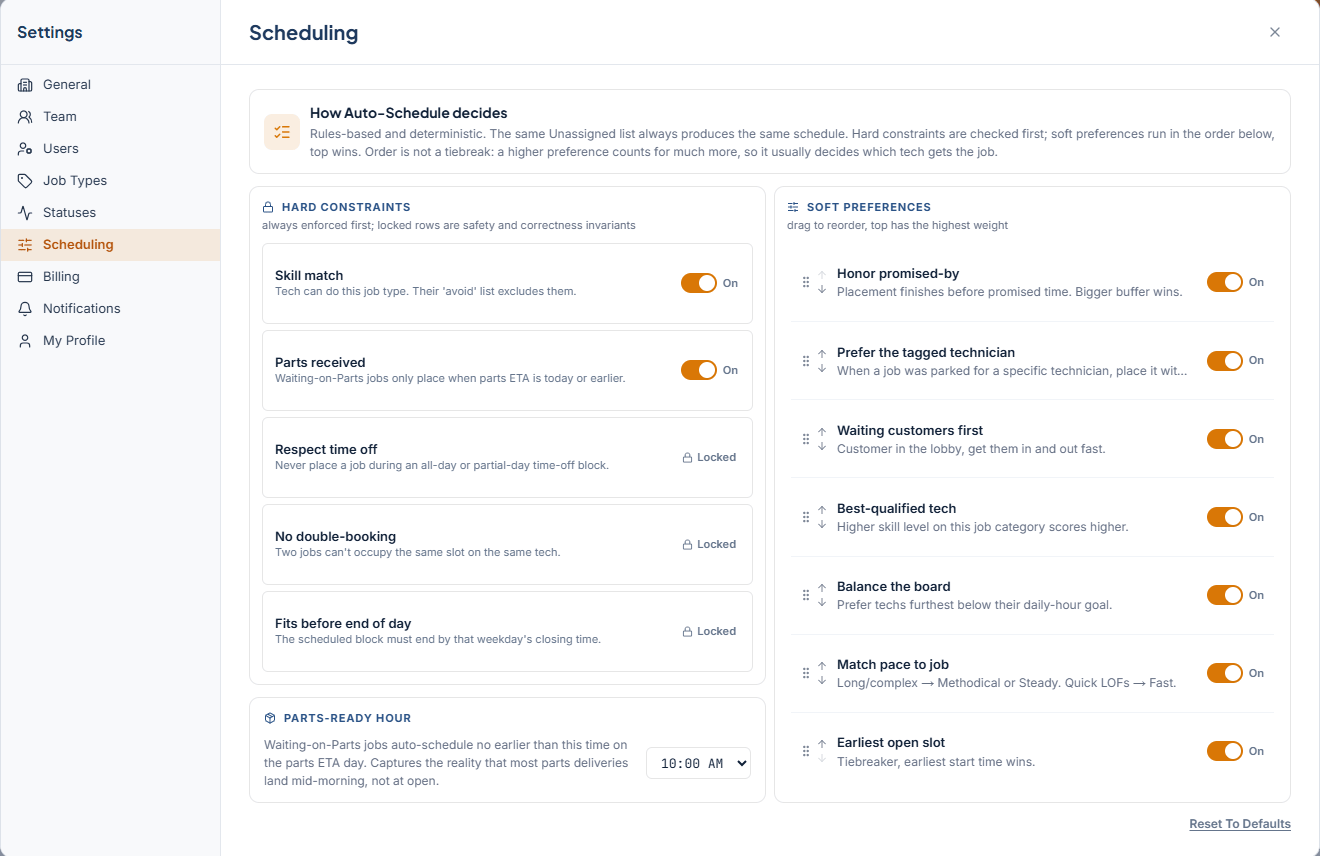
The screen opens with a short explanation titled "How Auto-Schedule decides": "Rules-based and deterministic. The same Unassigned list always produces the same schedule. Hard constraints are checked first; soft preferences run in the order below, top wins. Order is not a tiebreak: a higher preference counts for much more, so it usually decides which tech gets the job."
 ## Hard constraints
Hard constraints are always enforced first. Rows marked Locked cannot be turned off because they protect the board from invalid placements.
| Constraint | Control | What it does |
| ---------------------- | ------- | -------------------------------------------------------------------- |
| Skill match | Toggle | Tech can do this job type. Their "avoid" list excludes them. |
| Parts received | Toggle | Waiting-on-Parts jobs only place when parts ETA is today or earlier. |
| Respect time off | Locked | Never place a job during an all-day or partial-day time-off block. |
| No double-booking | Locked | Two jobs can't occupy the same slot on the same tech. |
| Fits before end of day | Locked | The scheduled block must end by that weekday's closing time. |
## Parts-ready hour
The Parts-ready hour is the earliest time a Waiting on Parts job can be placed on its parts ETA day. The card explains: "Waiting-on-Parts jobs auto-schedule no earlier than this time on the parts ETA day. Captures the reality that most parts deliveries land mid-morning, not at open."
Pick a time from 8:00 AM to 2:00 PM. The default is 10:00 AM.
## Soft preferences
Soft preferences decide which open slot a job gets once the hard constraints pass. The top item has the highest weight. The default order is:
1. Honor promised-by
2. Waiting customers first
3. Prefer the tagged technician
4. Best-qualified tech
5. Balance the board
6. Match pace to job
7. Earliest open slot
Each row has an On / Off toggle. Turn a preference off and Auto-Schedule ignores it.
To reorder, drag a row to a new position, or use its **Move Up** and **Move Down** buttons. The new order takes effect on the next run.
A higher preference counts for much more than the one below it. Put the rule you care about most at the top rather than treating the list as a tiebreak order.
## Reset to defaults
Click **Reset To Defaults** at the bottom of the screen to restore the default toggles, the 10:00 AM parts-ready hour, and the default preference order.
## Related
* [Run Auto-Schedule](/auto-scheduler/run-auto-schedule)
* [Tech capability profile](/team-and-roles/tech-capability-profile)
* [Add time off](/time-off/add-time-off)
## Related topics
- [Tech capability profile](/team-and-roles/tech-capability-profile.md)
- [Promised time](/schedule-board/promised-time.md)
- [Run Auto-Schedule](/auto-scheduler/run-auto-schedule.md)
- [Auto-Scheduler](/auto-scheduler.md)
- [What's new](/changelog.md)
## Hard constraints
Hard constraints are always enforced first. Rows marked Locked cannot be turned off because they protect the board from invalid placements.
| Constraint | Control | What it does |
| ---------------------- | ------- | -------------------------------------------------------------------- |
| Skill match | Toggle | Tech can do this job type. Their "avoid" list excludes them. |
| Parts received | Toggle | Waiting-on-Parts jobs only place when parts ETA is today or earlier. |
| Respect time off | Locked | Never place a job during an all-day or partial-day time-off block. |
| No double-booking | Locked | Two jobs can't occupy the same slot on the same tech. |
| Fits before end of day | Locked | The scheduled block must end by that weekday's closing time. |
## Parts-ready hour
The Parts-ready hour is the earliest time a Waiting on Parts job can be placed on its parts ETA day. The card explains: "Waiting-on-Parts jobs auto-schedule no earlier than this time on the parts ETA day. Captures the reality that most parts deliveries land mid-morning, not at open."
Pick a time from 8:00 AM to 2:00 PM. The default is 10:00 AM.
## Soft preferences
Soft preferences decide which open slot a job gets once the hard constraints pass. The top item has the highest weight. The default order is:
1. Honor promised-by
2. Waiting customers first
3. Prefer the tagged technician
4. Best-qualified tech
5. Balance the board
6. Match pace to job
7. Earliest open slot
Each row has an On / Off toggle. Turn a preference off and Auto-Schedule ignores it.
To reorder, drag a row to a new position, or use its **Move Up** and **Move Down** buttons. The new order takes effect on the next run.
A higher preference counts for much more than the one below it. Put the rule you care about most at the top rather than treating the list as a tiebreak order.
## Reset to defaults
Click **Reset To Defaults** at the bottom of the screen to restore the default toggles, the 10:00 AM parts-ready hour, and the default preference order.
## Related
* [Run Auto-Schedule](/auto-scheduler/run-auto-schedule)
* [Tech capability profile](/team-and-roles/tech-capability-profile)
* [Add time off](/time-off/add-time-off)
## Related topics
- [Tech capability profile](/team-and-roles/tech-capability-profile.md)
- [Promised time](/schedule-board/promised-time.md)
- [Run Auto-Schedule](/auto-scheduler/run-auto-schedule.md)
- [Auto-Scheduler](/auto-scheduler.md)
- [What's new](/changelog.md)