> ## Documentation Index
> Fetch the complete documentation index at: https://docs.bayboard.io/llms.txt
> Use this file to discover all available pages before exploring further.
# Schedule board
> What the board shows, who can change it, and where to find each task.
The schedule board is the home screen. It shows one day of work for every technician in the shop. Use it to add jobs, place them on technicians, and track status through the day.
 ## What the board shows
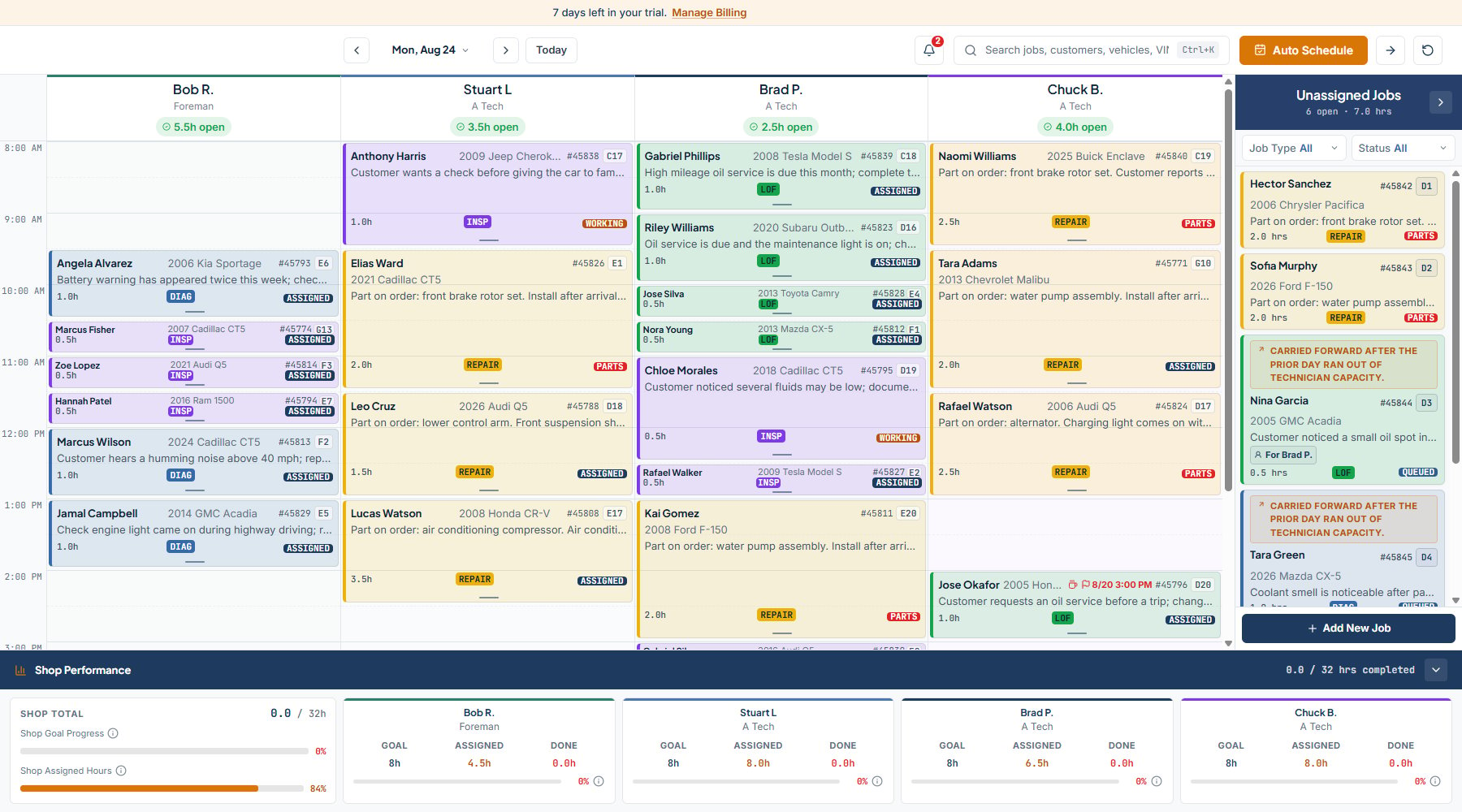
* **Technician columns.** Each active technician gets a column. The header shows the short name, a tier label (Foreman, A Tech, B Tech, Apprentice), and a "You" pill on your own column.
* **Time rows.** Time runs down the left side in 30-minute ticks, from shop open to shop close.
* **Capacity chip.** Each column header shows open hours for the day, such as "3.5h open" or "1.0h over". Red means under 30 minutes open, amber under 2 hours, green otherwise.
* **Job cards.** Each card shows the customer, vehicle, RO number, hours, job type, and a status pill. Click a card to open Job Details.
* **Time off.** A hatched overlay with an "OFF" or "PARTIAL" badge marks time a technician is away.
* **Unassigned panel.** The list on the right side of the board. Jobs wait here until they are placed on a technician.
* **Shop Performance strip.** The strip at the bottom shows hours completed against the shop goal, assigned hours, and Goal, Assigned, and Done for each technician.
## Moving between days
Use the chevrons in the top bar to go to the previous or next open day. Closed days are skipped. Click the date to pick a day from the calendar. **Today** jumps back to the current day.
Past days and future days are read-only for placement. You cannot drag jobs on them. Status changes, edits, archive, and unassign still work on past boards.
Press Ctrl+B on Windows, Cmd+B on Mac, to collapse the navigation rail, Shop Performance, and the Unassigned panel together. Press it again to bring them back.
## Who can do what
| Action | Roles |
| --------------------------------------------------------- | -------------------------------------------------------- |
| View the board, search, open Job Details | All roles |
| Add, edit, drag, resize, change status, archive, unassign | Owner / Admin, General Manager, Service Advisor, Foreman |
| Auto Schedule, Carry Forward, Reset Day | Owner / Admin, General Manager, Service Advisor |
Technicians see the board as read-only. If billing is past due, the board is read-only for everyone.
## Tasks
Create a repair order from the Unassigned panel.
Drag a job onto a technician at a time.
Change a job's slot, technician, or block length.
Read and edit a job from its card.
The six statuses and how to change them.
What waits in the panel and how to filter it.
Set a promise and spot overdue jobs.
Bulk-move jobs to today or back to Unassigned.
Find any job by RO, customer, vehicle, or VIN.
## Related topics
- [Keyboard shortcuts](/support/keyboard-shortcuts.md)
- [BayBoard help](/index.md)
- [What's new](/changelog.md)
- [Find your way around](/getting-started/find-your-way-around.md)
- [Team and roles](/team-and-roles.md)
## What the board shows
* **Technician columns.** Each active technician gets a column. The header shows the short name, a tier label (Foreman, A Tech, B Tech, Apprentice), and a "You" pill on your own column.
* **Time rows.** Time runs down the left side in 30-minute ticks, from shop open to shop close.
* **Capacity chip.** Each column header shows open hours for the day, such as "3.5h open" or "1.0h over". Red means under 30 minutes open, amber under 2 hours, green otherwise.
* **Job cards.** Each card shows the customer, vehicle, RO number, hours, job type, and a status pill. Click a card to open Job Details.
* **Time off.** A hatched overlay with an "OFF" or "PARTIAL" badge marks time a technician is away.
* **Unassigned panel.** The list on the right side of the board. Jobs wait here until they are placed on a technician.
* **Shop Performance strip.** The strip at the bottom shows hours completed against the shop goal, assigned hours, and Goal, Assigned, and Done for each technician.
## Moving between days
Use the chevrons in the top bar to go to the previous or next open day. Closed days are skipped. Click the date to pick a day from the calendar. **Today** jumps back to the current day.
Past days and future days are read-only for placement. You cannot drag jobs on them. Status changes, edits, archive, and unassign still work on past boards.
Press Ctrl+B on Windows, Cmd+B on Mac, to collapse the navigation rail, Shop Performance, and the Unassigned panel together. Press it again to bring them back.
## Who can do what
| Action | Roles |
| --------------------------------------------------------- | -------------------------------------------------------- |
| View the board, search, open Job Details | All roles |
| Add, edit, drag, resize, change status, archive, unassign | Owner / Admin, General Manager, Service Advisor, Foreman |
| Auto Schedule, Carry Forward, Reset Day | Owner / Admin, General Manager, Service Advisor |
Technicians see the board as read-only. If billing is past due, the board is read-only for everyone.
## Tasks
Create a repair order from the Unassigned panel.
Drag a job onto a technician at a time.
Change a job's slot, technician, or block length.
Read and edit a job from its card.
The six statuses and how to change them.
What waits in the panel and how to filter it.
Set a promise and spot overdue jobs.
Bulk-move jobs to today or back to Unassigned.
Find any job by RO, customer, vehicle, or VIN.
## Related topics
- [Keyboard shortcuts](/support/keyboard-shortcuts.md)
- [BayBoard help](/index.md)
- [What's new](/changelog.md)
- [Find your way around](/getting-started/find-your-way-around.md)
- [Team and roles](/team-and-roles.md)