> ## Documentation Index
> Fetch the complete documentation index at: https://docs.bayboard.io/llms.txt
> Use this file to discover all available pages before exploring further.
# Add a job
> Create a repair order from the Unassigned panel and place it on the board or leave it unassigned.
You can add a job if you are an Owner / Admin, General Manager, Service Advisor, or Foreman. The button is hidden when billing is past due.
 ## Steps
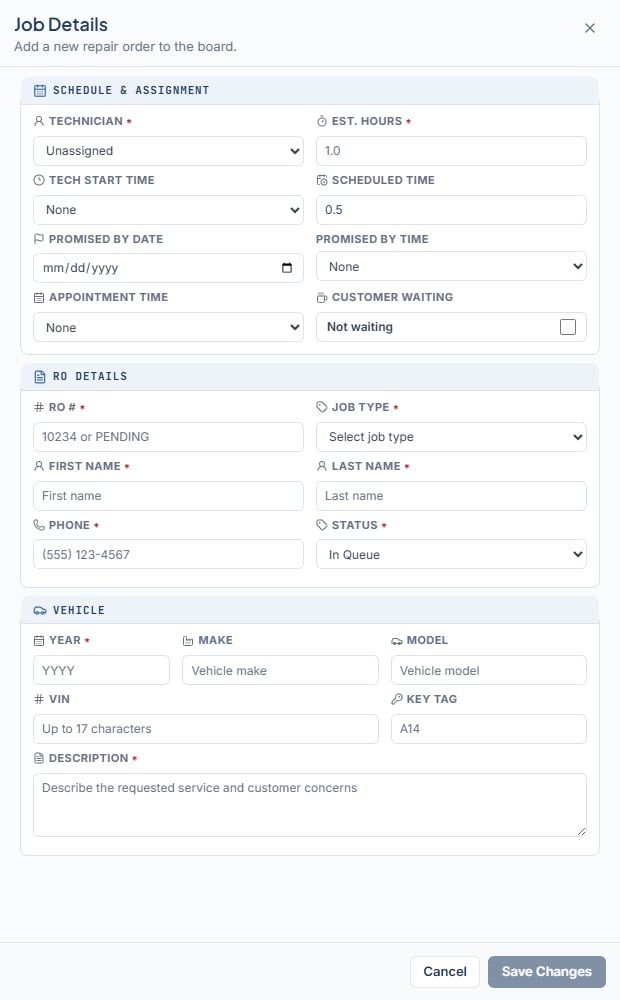
Click **Add New Job** at the bottom of the Unassigned panel, or press N. A drawer opens on the right titled "Job Details" with the subtitle "Add a new repair order to the board."
Enter the RO #, Job Type, customer name, Phone, and Status. Typing two or more letters in Last Name searches existing customers.
Enter the Year, plus Make or Model. Add the VIN and Key Tag if you have them. Write the Description.
Pick a Technician and Tech Start Time to place the job on the board now. Leave either blank to send the job to Unassigned.
Click **Save Changes**, or press Ctrl+S on Windows, Cmd+S on Mac. Ctrl+Enter also saves. The button stays disabled until you change something.
## Fields
Required fields are marked with an asterisk.
### Schedule & Assignment
| Field | Notes |
| ---------------------------------- | ------------------------------------------------------------- |
| Technician\* | First option is "Unassigned". |
| Est. Hours\* | Filled from the job type until you edit it. |
| Tech Start Time | 30-minute slots, or "None". |
| Scheduled Time | The block length in hours, not a clock time. Half-hour steps. |
| Promised By Date, Promised By Time | Set both or neither. |
| Appointment Time | When the customer is due. |
| Customer Waiting | "Waiting on site" or "Not waiting". |
### RO Details
| Field | Notes |
| ------------------------- | ------------------------------------------------------------------------------------- |
| RO #\* | Digits, or PENDING. Locked after the job is saved. |
| Job Type\* | Alignment, Diagnostic, Inspection, LOF + Inspection, Pre-Purchase Inspection, Repair. |
| First Name\*, Last Name\* | Last Name searches customers after 2 characters. |
| Phone\* | 10 to 15 digits. Locked after the job is saved. |
| Status\* | Follows placement unless you change it. |
### Vehicle
| Field | Notes |
| ------------- | --------------------------- |
| Year\* | Four digits. |
| Make, Model | One of the two is required. |
| VIN | Up to 17 characters. |
| Key Tag | For example A14. |
| Description\* | What the job is. |
## Default hours by job type
Choosing a job type fills Est. Hours until you type your own value.
| Job type | Default Est. Hours |
| ----------------------- | ------------------ |
| Alignment | 1.0 |
| Diagnostic | 1.0 |
| Inspection | 0.5 |
| LOF + Inspection | 0.5 |
| Pre-Purchase Inspection | 1.0 |
| Repair | 2.0 |
## Where the job lands
If both Technician and Tech Start Time are set, the job goes on the board for the day you are viewing with status Assigned. Otherwise it goes to the Unassigned panel. If you chose a technician but no start time, the card shows a "For \[tech]" tag so you know who it is meant for.
Customers and vehicles are matched by phone and VIN. The drawer tells you what will happen: "Existing customer selected", "New customer will be created", "Existing vehicle selected", or "New vehicle will be created".
## Reusing an RO number
If the RO # already has a job, a dialog asks "Link to this RO?". Linking reuses that customer, vehicle, and phone. The jobs stay separate, with their own tech, work, status, and promise time. Click **Link To This RO** to continue or **Change RO #** to go back. Some RO numbers cannot be reused. The drawer says "This RO # cannot be reused".
## Common messages
The footer shows one message at a time. Fix it and save again.
| Message | What to do |
| --------------------------------------------------------------------------------- | ------------------------------------------------ |
| RO # must contain digits or PENDING. | Use numbers only, or type PENDING. |
| Est. Hours must be greater than zero. | Enter a value above 0. |
| Scheduled Time must use half-hour increments. | Use 0.5, 1.0, 1.5, and so on. |
| Phone must contain 10 to 15 digits. | Remove letters and check the length. |
| Vehicle make or model is required. | Fill in at least one. |
| Promised By date and time must both be selected. | Set both fields or clear both. |
| The scheduled block must fit within the shop's open hours. | Pick an earlier start or a shorter block. |
| Status must be Assigned when a Technician and Tech Start Time are selected. | Set Status to Assigned, or clear the placement. |
| Status must be In Queue until both a Technician and Tech Start Time are selected. | Set Status to In Queue, or finish the placement. |
Closing the drawer with unsaved edits asks "Discard unsaved changes?". Choose **Discard Changes** to close or **Cancel** to keep editing. If a save fails, a red banner offers **Retry**.
## Related
* [Assign a job](/schedule-board/assign-a-job)
* [Unassigned jobs](/schedule-board/unassigned-jobs)
* [Job statuses](/schedule-board/job-statuses)
## Related topics
- [Unassigned jobs](/schedule-board/unassigned-jobs.md)
- [Job details](/schedule-board/job-details.md)
- [Promised time](/schedule-board/promised-time.md)
- [Getting started](/getting-started.md)
- [Keyboard shortcuts](/support/keyboard-shortcuts.md)
## Steps
Click **Add New Job** at the bottom of the Unassigned panel, or press N. A drawer opens on the right titled "Job Details" with the subtitle "Add a new repair order to the board."
Enter the RO #, Job Type, customer name, Phone, and Status. Typing two or more letters in Last Name searches existing customers.
Enter the Year, plus Make or Model. Add the VIN and Key Tag if you have them. Write the Description.
Pick a Technician and Tech Start Time to place the job on the board now. Leave either blank to send the job to Unassigned.
Click **Save Changes**, or press Ctrl+S on Windows, Cmd+S on Mac. Ctrl+Enter also saves. The button stays disabled until you change something.
## Fields
Required fields are marked with an asterisk.
### Schedule & Assignment
| Field | Notes |
| ---------------------------------- | ------------------------------------------------------------- |
| Technician\* | First option is "Unassigned". |
| Est. Hours\* | Filled from the job type until you edit it. |
| Tech Start Time | 30-minute slots, or "None". |
| Scheduled Time | The block length in hours, not a clock time. Half-hour steps. |
| Promised By Date, Promised By Time | Set both or neither. |
| Appointment Time | When the customer is due. |
| Customer Waiting | "Waiting on site" or "Not waiting". |
### RO Details
| Field | Notes |
| ------------------------- | ------------------------------------------------------------------------------------- |
| RO #\* | Digits, or PENDING. Locked after the job is saved. |
| Job Type\* | Alignment, Diagnostic, Inspection, LOF + Inspection, Pre-Purchase Inspection, Repair. |
| First Name\*, Last Name\* | Last Name searches customers after 2 characters. |
| Phone\* | 10 to 15 digits. Locked after the job is saved. |
| Status\* | Follows placement unless you change it. |
### Vehicle
| Field | Notes |
| ------------- | --------------------------- |
| Year\* | Four digits. |
| Make, Model | One of the two is required. |
| VIN | Up to 17 characters. |
| Key Tag | For example A14. |
| Description\* | What the job is. |
## Default hours by job type
Choosing a job type fills Est. Hours until you type your own value.
| Job type | Default Est. Hours |
| ----------------------- | ------------------ |
| Alignment | 1.0 |
| Diagnostic | 1.0 |
| Inspection | 0.5 |
| LOF + Inspection | 0.5 |
| Pre-Purchase Inspection | 1.0 |
| Repair | 2.0 |
## Where the job lands
If both Technician and Tech Start Time are set, the job goes on the board for the day you are viewing with status Assigned. Otherwise it goes to the Unassigned panel. If you chose a technician but no start time, the card shows a "For \[tech]" tag so you know who it is meant for.
Customers and vehicles are matched by phone and VIN. The drawer tells you what will happen: "Existing customer selected", "New customer will be created", "Existing vehicle selected", or "New vehicle will be created".
## Reusing an RO number
If the RO # already has a job, a dialog asks "Link to this RO?". Linking reuses that customer, vehicle, and phone. The jobs stay separate, with their own tech, work, status, and promise time. Click **Link To This RO** to continue or **Change RO #** to go back. Some RO numbers cannot be reused. The drawer says "This RO # cannot be reused".
## Common messages
The footer shows one message at a time. Fix it and save again.
| Message | What to do |
| --------------------------------------------------------------------------------- | ------------------------------------------------ |
| RO # must contain digits or PENDING. | Use numbers only, or type PENDING. |
| Est. Hours must be greater than zero. | Enter a value above 0. |
| Scheduled Time must use half-hour increments. | Use 0.5, 1.0, 1.5, and so on. |
| Phone must contain 10 to 15 digits. | Remove letters and check the length. |
| Vehicle make or model is required. | Fill in at least one. |
| Promised By date and time must both be selected. | Set both fields or clear both. |
| The scheduled block must fit within the shop's open hours. | Pick an earlier start or a shorter block. |
| Status must be Assigned when a Technician and Tech Start Time are selected. | Set Status to Assigned, or clear the placement. |
| Status must be In Queue until both a Technician and Tech Start Time are selected. | Set Status to In Queue, or finish the placement. |
Closing the drawer with unsaved edits asks "Discard unsaved changes?". Choose **Discard Changes** to close or **Cancel** to keep editing. If a save fails, a red banner offers **Retry**.
## Related
* [Assign a job](/schedule-board/assign-a-job)
* [Unassigned jobs](/schedule-board/unassigned-jobs)
* [Job statuses](/schedule-board/job-statuses)
## Related topics
- [Unassigned jobs](/schedule-board/unassigned-jobs.md)
- [Job details](/schedule-board/job-details.md)
- [Promised time](/schedule-board/promised-time.md)
- [Getting started](/getting-started.md)
- [Keyboard shortcuts](/support/keyboard-shortcuts.md)