> ## Documentation Index
> Fetch the complete documentation index at: https://docs.bayboard.io/llms.txt
> Use this file to discover all available pages before exploring further.
# Job details
> Read a job from its card, make quick edits, and open the full editor.
Job Details is the window that opens when you click a job card, or press Enter or Space with a card focused. Every role can open it. Only Owner / Admin, General Manager, Service Advisor, and Foreman can change anything.
 ## What it shows
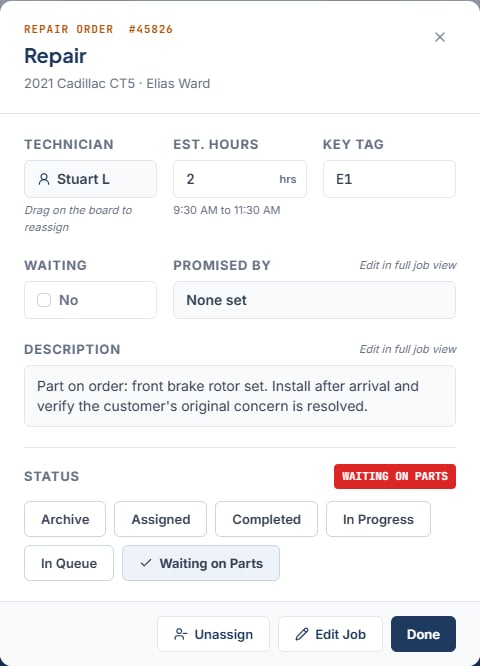
The header reads "Repair Order #10234" with the job type, the vehicle, and the customer. Below it:
| Field | Editable here |
| ----------- | ----------------------------------------------------------------------------------------------------------------------- |
| Technician | No. The hint reads "Drag on the board to reassign". |
| Est. Hours | Yes. Commits when you click away. The scheduled span shows under it, such as "9:00 AM to 11:00 AM", or "Not scheduled". |
| Key Tag | Yes. |
| Waiting | Yes. Toggle **Yes** or **No**. |
| Promised By | No. Shows the promise or "None set". |
| Description | No. |
| Status | Yes. Six buttons, one per status. |
Edits commit right away. There is no save button in this window.
## Change the rest with Edit Job
Promised time, description, technician, and start time are edited in the full drawer. Click **Edit Job** to open it. Change the fields and click **Save Changes**. The drawer uses the same fields as [Add a job](/schedule-board/add-a-job).
## Footer buttons
* **Unassign** takes the job off the board and back to the Unassigned panel. It appears only for a job scheduled on the day you are viewing that is not Completed.
* **Edit Job** opens the full drawer. It is hidden for archived jobs and for jobs on a day other than the one you are viewing.
* **Done** closes the window.
There is no delete. Archive is the only way to remove a job, and it is reversible. See [Job statuses](/schedule-board/job-statuses).
## When inline editing is unavailable
Est. Hours, Key Tag, Waiting, and Status become read-only when any of these apply:
* Your role is Technician.
* The job is Completed or Archived.
* The job is scheduled on a day other than the one you are viewing.
Unassigned jobs can always be edited inline by an editing role.
## Related
* [Job statuses](/schedule-board/job-statuses)
* [Promised time](/schedule-board/promised-time)
* [Move or resize a job](/schedule-board/move-or-resize-a-job)
## Related topics
- [Job statuses](/schedule-board/job-statuses.md)
- [Add a job](/schedule-board/add-a-job.md)
- [Assign a job](/schedule-board/assign-a-job.md)
- [Move or resize a job](/schedule-board/move-or-resize-a-job.md)
- [Unassigned jobs](/schedule-board/unassigned-jobs.md)
## What it shows
The header reads "Repair Order #10234" with the job type, the vehicle, and the customer. Below it:
| Field | Editable here |
| ----------- | ----------------------------------------------------------------------------------------------------------------------- |
| Technician | No. The hint reads "Drag on the board to reassign". |
| Est. Hours | Yes. Commits when you click away. The scheduled span shows under it, such as "9:00 AM to 11:00 AM", or "Not scheduled". |
| Key Tag | Yes. |
| Waiting | Yes. Toggle **Yes** or **No**. |
| Promised By | No. Shows the promise or "None set". |
| Description | No. |
| Status | Yes. Six buttons, one per status. |
Edits commit right away. There is no save button in this window.
## Change the rest with Edit Job
Promised time, description, technician, and start time are edited in the full drawer. Click **Edit Job** to open it. Change the fields and click **Save Changes**. The drawer uses the same fields as [Add a job](/schedule-board/add-a-job).
## Footer buttons
* **Unassign** takes the job off the board and back to the Unassigned panel. It appears only for a job scheduled on the day you are viewing that is not Completed.
* **Edit Job** opens the full drawer. It is hidden for archived jobs and for jobs on a day other than the one you are viewing.
* **Done** closes the window.
There is no delete. Archive is the only way to remove a job, and it is reversible. See [Job statuses](/schedule-board/job-statuses).
## When inline editing is unavailable
Est. Hours, Key Tag, Waiting, and Status become read-only when any of these apply:
* Your role is Technician.
* The job is Completed or Archived.
* The job is scheduled on a day other than the one you are viewing.
Unassigned jobs can always be edited inline by an editing role.
## Related
* [Job statuses](/schedule-board/job-statuses)
* [Promised time](/schedule-board/promised-time)
* [Move or resize a job](/schedule-board/move-or-resize-a-job)
## Related topics
- [Job statuses](/schedule-board/job-statuses.md)
- [Add a job](/schedule-board/add-a-job.md)
- [Assign a job](/schedule-board/assign-a-job.md)
- [Move or resize a job](/schedule-board/move-or-resize-a-job.md)
- [Unassigned jobs](/schedule-board/unassigned-jobs.md)