> ## Documentation Index
> Fetch the complete documentation index at: https://docs.bayboard.io/llms.txt
> Use this file to discover all available pages before exploring further.
# Contact Support
> Send a support ticket from inside BayBoard and get a reply within one business day.
Every role can send a ticket to the BayBoard support team from inside the app. Replies go to the email you signed in with.
## Open Contact Support
Click **Support** in the left rail, then **Contact Support**. You can also open `/support/contact` directly in the app.
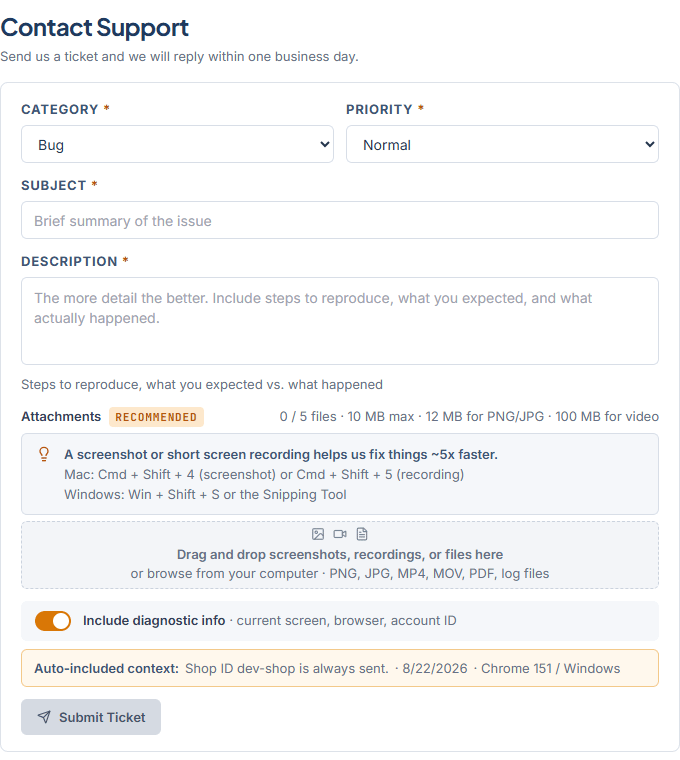 ## Send a ticket
Choose Bug, How-to question, Billing, Feature request, Account / login, or Other. The default is Bug.
Choose Low, Normal, High, or Urgent (board down). The default is Normal. Use Urgent (board down) only when your shop cannot use the schedule board.
A brief summary of the issue, up to 120 characters.
Up to 4000 characters. Include the steps to reproduce, what you expected, and what actually happened.
Drag screenshots, recordings, or files into the drop zone, or click to browse from your computer. Accepted types are PNG, JPG, MP4, MOV, PDF, and log files.
Limits: up to 5 files per ticket. PNG and JPG can be up to 12 MB. Video can be up to 100 MB. Other files can be up to 10 MB.
Each file shows its name and size with a **Remove** button. Video files show an upload progress bar with a cancel option while the ticket sends.
The Include diagnostic info toggle is on by default. It sends your current screen, browser, and account ID with the ticket. Your Shop ID is always sent. Turn the toggle off if you do not want the optional context included.
**Submit Ticket** turns on once Subject and Description are filled. The button reads **Sending Ticket...** while it sends.
When the ticket goes through you see "Ticket sent" and "We received your request and will reply within one business day." Click **Submit Another** to send a second ticket.
A screenshot or short screen recording helps the support team fix things much faster. On Windows press Win+Shift+S or use the Snipping Tool. On Mac press Cmd+Shift+4 for a screenshot or Cmd+Shift+5 for a recording.
Attachments are stored securely with your ticket for the support team. The reply comes to your signed-in email, so there is no email field on the form.
## If a file was not added
The form shows one of these messages and skips the file.
| Message | Fix |
| ------------------------------------------------------------------------------------------------------------------- | ------------------------------------------------------------------ |
| This file was not added. Up to 5 files per ticket. | Remove a file, or send the rest in a second ticket. |
| This file was not added. PNG, JPG, MP4, MOV, PDF, and log files only. | Save the file as one of those types, or take a screenshot instead. |
| This file was not added. PNG and JPG can be up to 12 MB. Video can be up to 100 MB. Other files can be up to 10 MB. | Trim the recording or crop the image so it fits under the limit. |
| This file was not added. Use a regular file name without special characters. | Rename the file using letters, numbers, hyphens, or underscores. |
## If the ticket was not sent
An error line appears under the form.
* "The ticket was not sent. Email [support@bayboard.io](mailto:support@bayboard.io) for help." The ticket did not reach the support team. Use the email link instead.
* "Too many requests. Try again later." Wait a few minutes, then click **Submit Ticket** again.
* "Check every required field and try again." Fill in Category, Priority, Subject, and Description.
If the form will not send, email [support@bayboard.io](mailto:support@bayboard.io). Include the same details you put in the form.
## Related
* [System status](/support/system-status)
* [Keyboard shortcuts](/support/keyboard-shortcuts)
## Related topics
- [System status](/support/system-status.md)
- [Find your way around](/getting-started/find-your-way-around.md)
- [BayBoard help](/index.md)
- [Billing](/billing.md)
- [What's new](/changelog.md)
## Send a ticket
Choose Bug, How-to question, Billing, Feature request, Account / login, or Other. The default is Bug.
Choose Low, Normal, High, or Urgent (board down). The default is Normal. Use Urgent (board down) only when your shop cannot use the schedule board.
A brief summary of the issue, up to 120 characters.
Up to 4000 characters. Include the steps to reproduce, what you expected, and what actually happened.
Drag screenshots, recordings, or files into the drop zone, or click to browse from your computer. Accepted types are PNG, JPG, MP4, MOV, PDF, and log files.
Limits: up to 5 files per ticket. PNG and JPG can be up to 12 MB. Video can be up to 100 MB. Other files can be up to 10 MB.
Each file shows its name and size with a **Remove** button. Video files show an upload progress bar with a cancel option while the ticket sends.
The Include diagnostic info toggle is on by default. It sends your current screen, browser, and account ID with the ticket. Your Shop ID is always sent. Turn the toggle off if you do not want the optional context included.
**Submit Ticket** turns on once Subject and Description are filled. The button reads **Sending Ticket...** while it sends.
When the ticket goes through you see "Ticket sent" and "We received your request and will reply within one business day." Click **Submit Another** to send a second ticket.
A screenshot or short screen recording helps the support team fix things much faster. On Windows press Win+Shift+S or use the Snipping Tool. On Mac press Cmd+Shift+4 for a screenshot or Cmd+Shift+5 for a recording.
Attachments are stored securely with your ticket for the support team. The reply comes to your signed-in email, so there is no email field on the form.
## If a file was not added
The form shows one of these messages and skips the file.
| Message | Fix |
| ------------------------------------------------------------------------------------------------------------------- | ------------------------------------------------------------------ |
| This file was not added. Up to 5 files per ticket. | Remove a file, or send the rest in a second ticket. |
| This file was not added. PNG, JPG, MP4, MOV, PDF, and log files only. | Save the file as one of those types, or take a screenshot instead. |
| This file was not added. PNG and JPG can be up to 12 MB. Video can be up to 100 MB. Other files can be up to 10 MB. | Trim the recording or crop the image so it fits under the limit. |
| This file was not added. Use a regular file name without special characters. | Rename the file using letters, numbers, hyphens, or underscores. |
## If the ticket was not sent
An error line appears under the form.
* "The ticket was not sent. Email [support@bayboard.io](mailto:support@bayboard.io) for help." The ticket did not reach the support team. Use the email link instead.
* "Too many requests. Try again later." Wait a few minutes, then click **Submit Ticket** again.
* "Check every required field and try again." Fill in Category, Priority, Subject, and Description.
If the form will not send, email [support@bayboard.io](mailto:support@bayboard.io). Include the same details you put in the form.
## Related
* [System status](/support/system-status)
* [Keyboard shortcuts](/support/keyboard-shortcuts)
## Related topics
- [System status](/support/system-status.md)
- [Find your way around](/getting-started/find-your-way-around.md)
- [BayBoard help](/index.md)
- [Billing](/billing.md)
- [What's new](/changelog.md)