> ## Documentation Index
> Fetch the complete documentation index at: https://docs.bayboard.io/llms.txt
> Use this file to discover all available pages before exploring further.
# Keyboard shortcuts
> Every key BayBoard supports, for the board, navigation, and Job Details.
BayBoard has a small set of shortcuts for the schedule board, moving between screens, and saving a job.
## Open the shortcut list
Press ? anywhere in the app. You can also click **Support** in the left rail, then **Shortcuts**, or open your account menu at the bottom of the rail and pick **Keyboard shortcuts**.
The overlay reads "Press \[?] any time to bring this back."
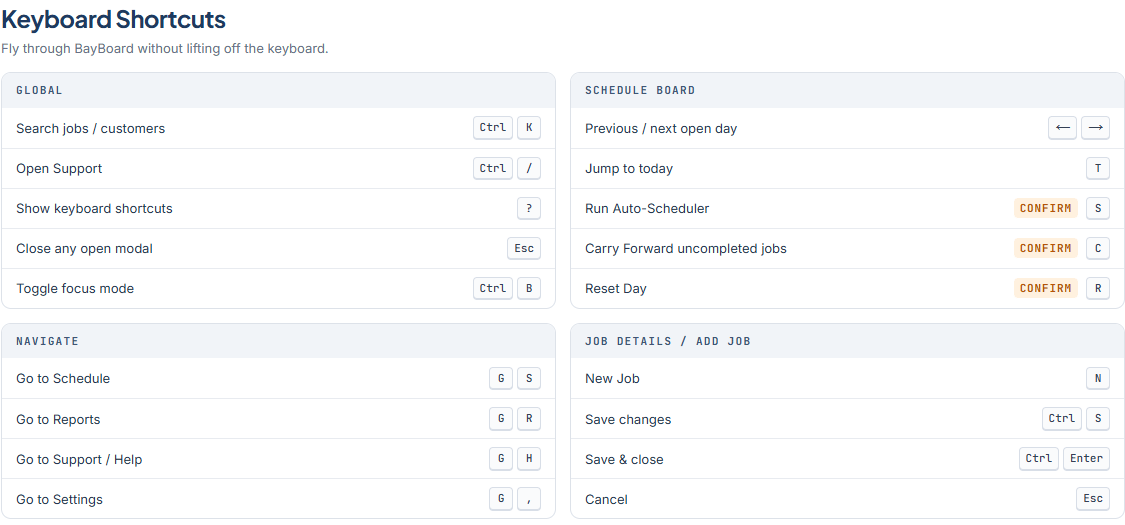 Shortcuts below use Ctrl on Windows and Cmd on Mac. Ctrl+K on Windows is Cmd+K on Mac.
## Global
| Keys | What it does |
| ------ | ------------------------- |
| Ctrl+K | Search jobs and customers |
| Ctrl+/ | Open Support |
| ? | Show keyboard shortcuts |
| Esc | Close any open modal |
| Ctrl+B | Toggle focus mode |
## Schedule board
| Keys | What it does |
| ------------------------ | ------------------------------------------------------ |
| Left arrow / Right arrow | Previous or next open day |
| T | Jump to today |
| S | Run Auto-Scheduler (asks for confirmation) |
| C | Carry Forward uncompleted jobs (asks for confirmation) |
| R | Reset Day (asks for confirmation) |
## Navigate
These are chords. Press G, then the second key within one second.
| Keys | What it does |
| -------- | -------------------- |
| G then S | Go to Schedule |
| G then R | Go to Reports |
| G then H | Go to Support / Help |
| G then , | Go to Settings |
## Job Details / Add Job
| Keys | What it does |
| ---------- | ------------ |
| N | New Job |
| Ctrl+S | Save changes |
| Ctrl+Enter | Save & close |
| Esc | Cancel |
Both save shortcuts run the same save, which closes the drawer on success.
Single-key shortcuts (T, S, C, R, N, ?, and the G chords) are off while you are typing in any field. Actions that change the board always ask for confirmation first.
## Related
* [Search](/schedule-board/search)
* [Carry Forward and Reset Day](/schedule-board/carry-forward-and-reset-day)
* [Run Auto-Schedule](/auto-scheduler/run-auto-schedule)
## Related topics
- [Find your way around](/getting-started/find-your-way-around.md)
- [Search](/schedule-board/search.md)
- [Contact Support](/support/contact-support.md)
- [BayBoard help](/index.md)
- [Set up your shop](/getting-started/set-up-your-shop.md)
Shortcuts below use Ctrl on Windows and Cmd on Mac. Ctrl+K on Windows is Cmd+K on Mac.
## Global
| Keys | What it does |
| ------ | ------------------------- |
| Ctrl+K | Search jobs and customers |
| Ctrl+/ | Open Support |
| ? | Show keyboard shortcuts |
| Esc | Close any open modal |
| Ctrl+B | Toggle focus mode |
## Schedule board
| Keys | What it does |
| ------------------------ | ------------------------------------------------------ |
| Left arrow / Right arrow | Previous or next open day |
| T | Jump to today |
| S | Run Auto-Scheduler (asks for confirmation) |
| C | Carry Forward uncompleted jobs (asks for confirmation) |
| R | Reset Day (asks for confirmation) |
## Navigate
These are chords. Press G, then the second key within one second.
| Keys | What it does |
| -------- | -------------------- |
| G then S | Go to Schedule |
| G then R | Go to Reports |
| G then H | Go to Support / Help |
| G then , | Go to Settings |
## Job Details / Add Job
| Keys | What it does |
| ---------- | ------------ |
| N | New Job |
| Ctrl+S | Save changes |
| Ctrl+Enter | Save & close |
| Esc | Cancel |
Both save shortcuts run the same save, which closes the drawer on success.
Single-key shortcuts (T, S, C, R, N, ?, and the G chords) are off while you are typing in any field. Actions that change the board always ask for confirmation first.
## Related
* [Search](/schedule-board/search)
* [Carry Forward and Reset Day](/schedule-board/carry-forward-and-reset-day)
* [Run Auto-Schedule](/auto-scheduler/run-auto-schedule)
## Related topics
- [Find your way around](/getting-started/find-your-way-around.md)
- [Search](/schedule-board/search.md)
- [Contact Support](/support/contact-support.md)
- [BayBoard help](/index.md)
- [Set up your shop](/getting-started/set-up-your-shop.md)