> ## Documentation Index
> Fetch the complete documentation index at: https://docs.bayboard.io/llms.txt
> Use this file to discover all available pages before exploring further.
# Change a role or deactivate an account
> Adjust what a user can do, or turn their access off and back on.
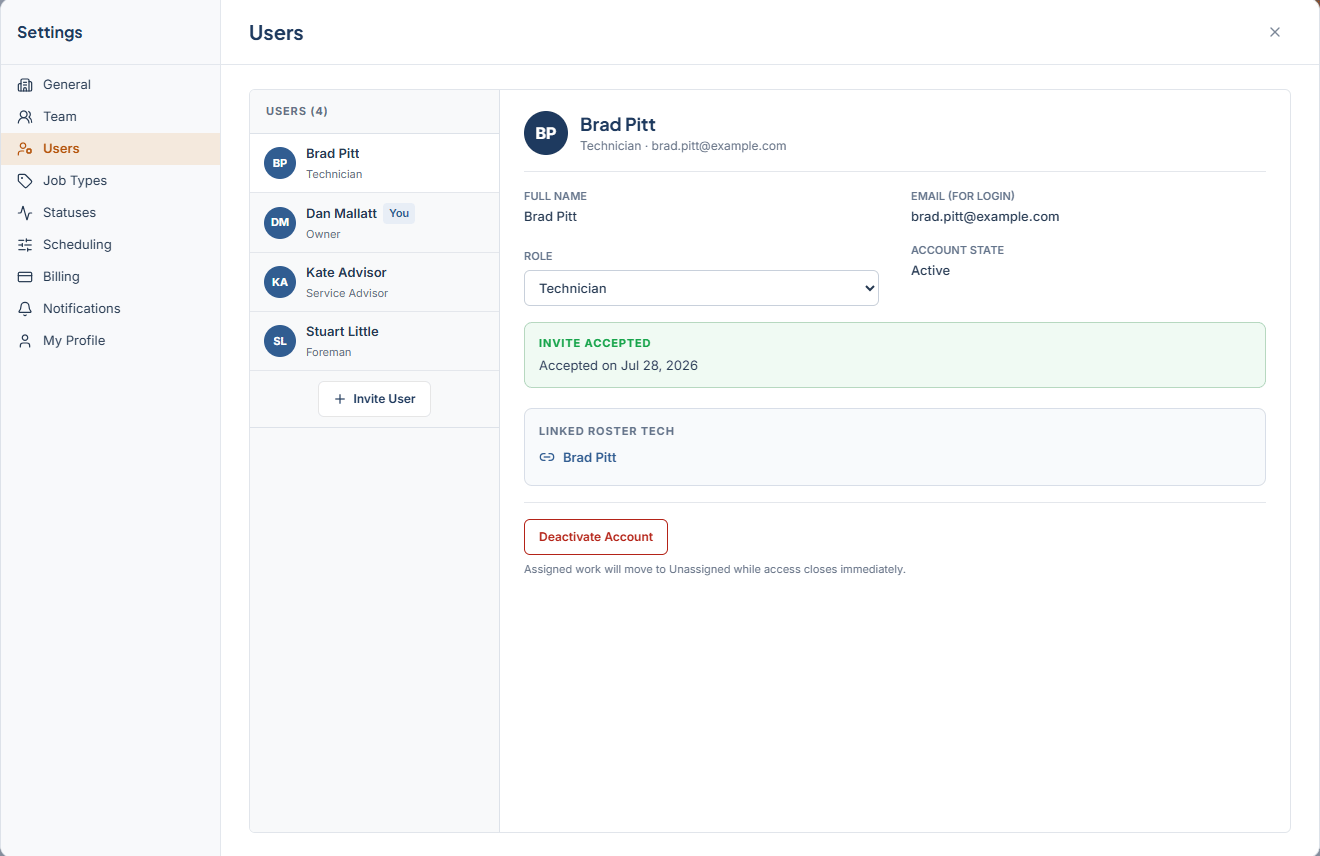
Owner / Admin and General Manager manage accounts in Settings > Users. Click a person in the list to open their member detail. There is no way to remove or delete a user. Deactivate the account instead.
 ## Member detail
| Field | Notes |
| ----------------- | ------------------------------ |
| FULL NAME | The person's name. |
| EMAIL (FOR LOGIN) | The address they sign in with. |
| ROLE | Select to change. |
| ACCOUNT STATE | Active or Deactivated. |
Below the fields, a Linked roster tech card shows the technician column this account is connected to. Click it to open that technician in Team. If it reads "Not linked", the card explains "This person sees the setup-incomplete state until a roster tech is linked."
## Change a role
In Settings > Users, click the person.
Change the ROLE select.
A dialog asks "Change \[name]'s role?" with "This changes \[name]'s access to \[Role]." Click **Change Role**.
You cannot change your own role. The app shows "You cannot change your own role." Ask another Owner / Admin or General Manager to do it.
## Deactivate an account
In Settings > Users, click the person.
A dialog asks "Deactivate \[name]'s account?" If the account is linked to a roster technician, the dialog warns that assigned work will move to Unassigned. Confirm to continue.
A deactivated person cannot sign in. They see "Your account has been deactivated." Their ACCOUNT STATE shows Deactivated, and the Users list marks them with a Deactivated chip.
Deactivating an account does not archive the roster technician. The column stays on the board. To remove the column as well, see [Archive or restore a technician](/team-and-roles/archive-a-technician).
## Reactivate an account
Open the member and click **Reactivate Account**. The dialog asks "Reactivate \[name]'s account?" and explains "\[name] will regain access to the shop with their existing role and roster link." Confirm to restore access.
## Related
* [Invite a user](/users-and-access/invite-a-user)
* [Users and access](/users-and-access)
* [Archive or restore a technician](/team-and-roles/archive-a-technician)
## Related topics
- [Archive or restore a technician](/team-and-roles/archive-a-technician.md)
- [Invite a user](/users-and-access/invite-a-user.md)
- [Sign in and reset your password](/getting-started/sign-in.md)
- [Team and roles](/team-and-roles.md)
- [Users and access](/users-and-access.md)
## Member detail
| Field | Notes |
| ----------------- | ------------------------------ |
| FULL NAME | The person's name. |
| EMAIL (FOR LOGIN) | The address they sign in with. |
| ROLE | Select to change. |
| ACCOUNT STATE | Active or Deactivated. |
Below the fields, a Linked roster tech card shows the technician column this account is connected to. Click it to open that technician in Team. If it reads "Not linked", the card explains "This person sees the setup-incomplete state until a roster tech is linked."
## Change a role
In Settings > Users, click the person.
Change the ROLE select.
A dialog asks "Change \[name]'s role?" with "This changes \[name]'s access to \[Role]." Click **Change Role**.
You cannot change your own role. The app shows "You cannot change your own role." Ask another Owner / Admin or General Manager to do it.
## Deactivate an account
In Settings > Users, click the person.
A dialog asks "Deactivate \[name]'s account?" If the account is linked to a roster technician, the dialog warns that assigned work will move to Unassigned. Confirm to continue.
A deactivated person cannot sign in. They see "Your account has been deactivated." Their ACCOUNT STATE shows Deactivated, and the Users list marks them with a Deactivated chip.
Deactivating an account does not archive the roster technician. The column stays on the board. To remove the column as well, see [Archive or restore a technician](/team-and-roles/archive-a-technician).
## Reactivate an account
Open the member and click **Reactivate Account**. The dialog asks "Reactivate \[name]'s account?" and explains "\[name] will regain access to the shop with their existing role and roster link." Confirm to restore access.
## Related
* [Invite a user](/users-and-access/invite-a-user)
* [Users and access](/users-and-access)
* [Archive or restore a technician](/team-and-roles/archive-a-technician)
## Related topics
- [Archive or restore a technician](/team-and-roles/archive-a-technician.md)
- [Invite a user](/users-and-access/invite-a-user.md)
- [Sign in and reset your password](/getting-started/sign-in.md)
- [Team and roles](/team-and-roles.md)
- [Users and access](/users-and-access.md)