> ## Documentation Index
> Fetch the complete documentation index at: https://docs.bayboard.io/llms.txt
> Use this file to discover all available pages before exploring further.
# Invite a user
> Send a sign-in invite with a role and an optional roster link.
Accounts are created by invitation. Owner / Admin and General Manager send invites from Settings > Users. Foreman can open the Users tab but sees "View only. User access is visible from your role but cannot be changed."
 ## Send the invite
Open Settings from the left rail and pick **Users**. The header shows "Users (n)".
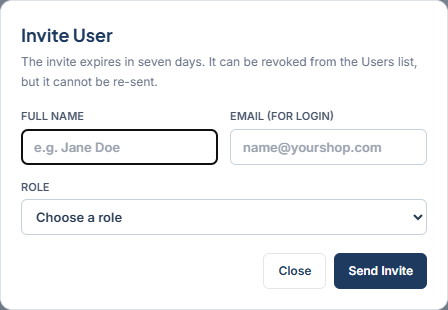
Click **Invite User**. The dialog opens with the note "The invite expires in seven days."
| Field | What to enter |
| ----------------- | --------------------------------------------------------- |
| FULL NAME | The person's name, 100 characters or fewer. |
| EMAIL (FOR LOGIN) | The address they will sign in with. The invite goes here. |
| ROLE | General Manager, Service Advisor, Foreman, or Technician. |
An Owner / Admin cannot be invited. Each shop has one owner.
When you choose Foreman or Technician, a LINK TO ROSTER TECH field appears. It lists "Not linked" and every roster technician that is not already linked to an account.
The app explains: "This link, not the email address, connects the account to a schedule column. Pick the roster record this person works. Selecting none is allowed, but the person will see setup-incomplete until linked."
If the person does not have a roster record yet, [add a technician](/team-and-roles/add-a-technician) first.
Click **Send Invite**. On success you see "The invitation email to \[email] is on its way." The person now appears in the Users list with an Invite pending chip.
Validation messages you may see: "Enter a full name with 100 characters or fewer.", "Enter a valid email address.", and "Choose a role."
## Resend or revoke an invite
Click a pending invite in the Users list. The detail shows Full name, Email, Role, Sent, Expires, and an Intended roster tech card.
* **Resend Invite** emails a fresh link. The confirm reads "Resend \[name]'s invite?"
* **Revoke Invite** cancels the invite. The confirm reads "Revoke \[name]'s invite?"
The app notes: "Resending emails a new link and expires the previous one, so the invitee always has exactly one that works. Revoking cancels the emailed link outright."
Invites expire after seven days. If one expires, send a new invite to the same email.
## Related
* [Accept an invite](/users-and-access/accept-an-invite)
* [Change a role or deactivate an account](/users-and-access/change-a-role-or-deactivate)
* [Add a technician](/team-and-roles/add-a-technician)
## Related topics
- [Change a role or deactivate an account](/users-and-access/change-a-role-or-deactivate.md)
- [My hours](/reports/my-hours.md)
- [Set up your shop](/getting-started/set-up-your-shop.md)
- [Add a technician](/team-and-roles/add-a-technician.md)
- [Getting started](/getting-started.md)
## Send the invite
Open Settings from the left rail and pick **Users**. The header shows "Users (n)".
Click **Invite User**. The dialog opens with the note "The invite expires in seven days."
| Field | What to enter |
| ----------------- | --------------------------------------------------------- |
| FULL NAME | The person's name, 100 characters or fewer. |
| EMAIL (FOR LOGIN) | The address they will sign in with. The invite goes here. |
| ROLE | General Manager, Service Advisor, Foreman, or Technician. |
An Owner / Admin cannot be invited. Each shop has one owner.
When you choose Foreman or Technician, a LINK TO ROSTER TECH field appears. It lists "Not linked" and every roster technician that is not already linked to an account.
The app explains: "This link, not the email address, connects the account to a schedule column. Pick the roster record this person works. Selecting none is allowed, but the person will see setup-incomplete until linked."
If the person does not have a roster record yet, [add a technician](/team-and-roles/add-a-technician) first.
Click **Send Invite**. On success you see "The invitation email to \[email] is on its way." The person now appears in the Users list with an Invite pending chip.
Validation messages you may see: "Enter a full name with 100 characters or fewer.", "Enter a valid email address.", and "Choose a role."
## Resend or revoke an invite
Click a pending invite in the Users list. The detail shows Full name, Email, Role, Sent, Expires, and an Intended roster tech card.
* **Resend Invite** emails a fresh link. The confirm reads "Resend \[name]'s invite?"
* **Revoke Invite** cancels the invite. The confirm reads "Revoke \[name]'s invite?"
The app notes: "Resending emails a new link and expires the previous one, so the invitee always has exactly one that works. Revoking cancels the emailed link outright."
Invites expire after seven days. If one expires, send a new invite to the same email.
## Related
* [Accept an invite](/users-and-access/accept-an-invite)
* [Change a role or deactivate an account](/users-and-access/change-a-role-or-deactivate)
* [Add a technician](/team-and-roles/add-a-technician)
## Related topics
- [Change a role or deactivate an account](/users-and-access/change-a-role-or-deactivate.md)
- [My hours](/reports/my-hours.md)
- [Set up your shop](/getting-started/set-up-your-shop.md)
- [Add a technician](/team-and-roles/add-a-technician.md)
- [Getting started](/getting-started.md)