
Which jobs it reads
Every run reads the board and the Unassigned panel, the list on the right side of the board. Assigned and In Progress jobs on that day can slide. Time-off and no double-booking still hold. An Unassigned job counts as ready when:- Its status is In Queue, or
- Its status is Waiting on Parts, the parts ETA is today or earlier, and the slot is no earlier than the parts-ready hour (default 10:00 AM).
Run it
1
Go to the day you want to fill
Use the date button or the day chevrons in the top bar. You cannot run Auto-Schedule on a past day. If you try, a toast reads “Past days are read-only.”
2
Click Auto Schedule or press S
The amber Auto Schedule button is in the top bar. Empty Unassigned does not stop the run. The run still re-optimizes jobs that are already on the board.
3
Read the confirm dialog
The dialog is titled “Run Auto-Schedule?” and reads: “For [Wed, Aug 12], BayBoard reads the board plus Unassigned and re-optimizes that day. Assigned and In Progress can slide. Time-off and no double-booking still hold. Anything that does not fit stays in Unassigned.”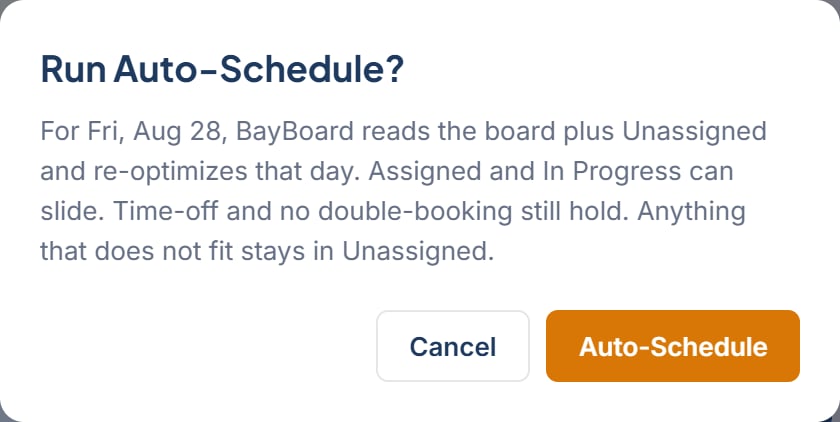
4
Click Auto-Schedule
A progress panel titled “Auto-Scheduler” reviews the board and Unassigned. It then walks through five steps: Reading the day’s capacity, Checking hard requirements, Weighing your scheduling priorities, Finding the best fit for each job, and Setting aside what will not fit.
5
Read the result
A toast reports the outcome in one of three forms:
- “[n] scheduled, [m] still in Unassigned”
- “[n] jobs scheduled”
- “Nothing to schedule. No Unassigned job was ready to place.” Nothing on this day was ready to put on the board.
Jobs that did not fit
A job that stays in Unassigned gets an amber chip that reads “Didn’t fit:” followed by a reason.- “the shop is closed” The day you are viewing is closed, so nothing was placed. Move to an open day and run it again.
- “waiting on parts, no ETA” The job is Waiting on Parts with no Parts ETA date. Open the job, set the Parts ETA date, then run again on or after that day.
- “parts due [date]” The Parts ETA is later than the day you are viewing. Run again on or after that ETA date.
- “no qualified tech” Every technician has this job type on their AVOID (IF POSSIBLE) list. Adjust the avoid lists in the tech capability profile, or pick a Technician for the job without a start time so it is tagged “For” that tech. A “For” tag overrides that avoid list for this job.
- “no open capacity” A qualified technician exists, but no open block fits the job before closing. Free up time, shorten Est. Hours, or try a later day.
Undo a run
The result toast has an Undo action. Undo restores prior board placements. Jobs the run placed from Unassigned go back to Unassigned. Undo then reports one of:- “Undid [n] jobs”
- “Undid [n] of [total] · [m] were changed since the run” when some placed jobs were edited or moved after the run
- “Nothing to undo. Every job changed since the run.”