1
Shop Profile
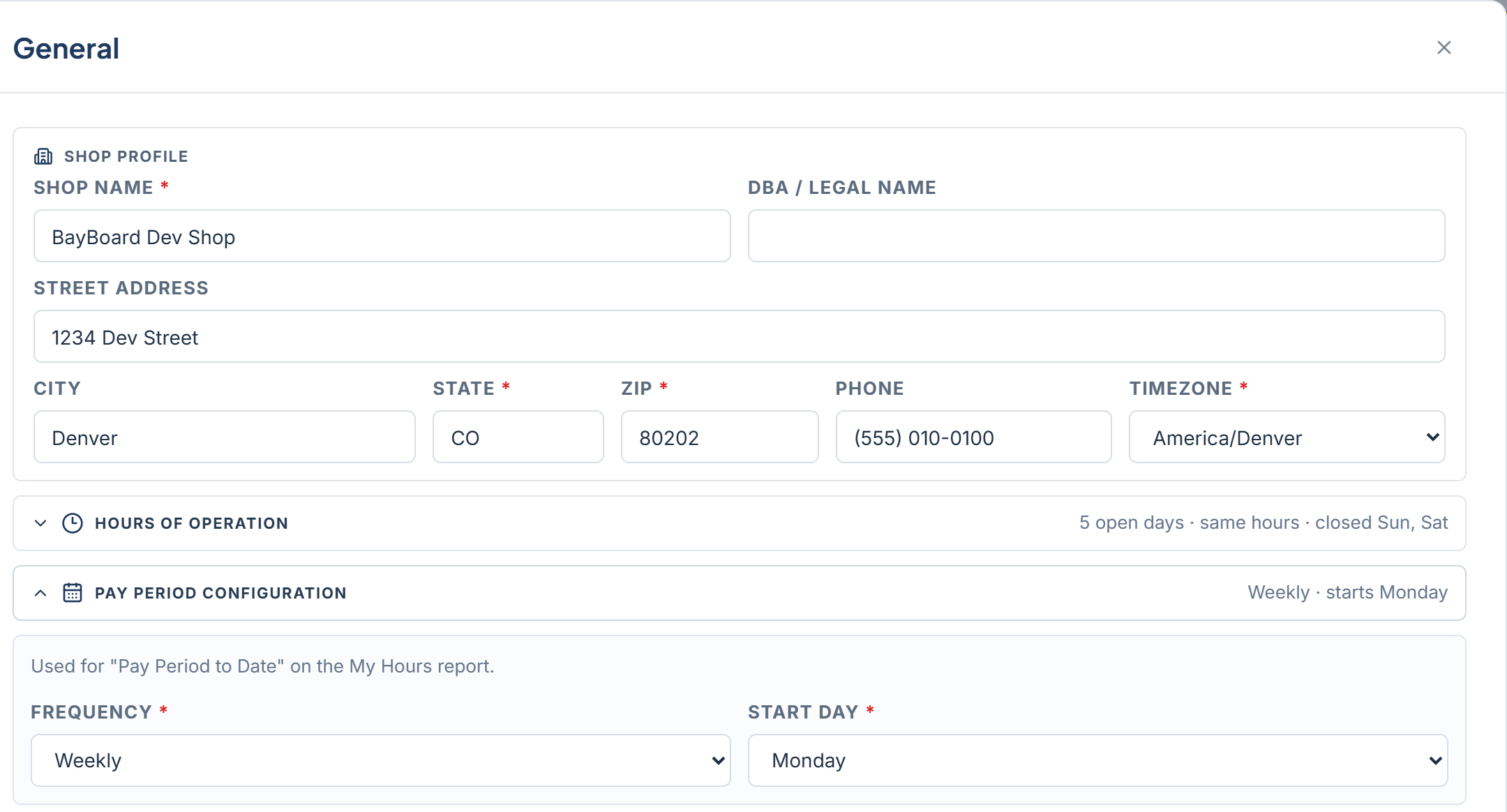
Fill in the shop details. Shop Name, Street Address, City, State, ZIP, and Phone are required. DBA / Legal Name is optional.Under Hours of operation, set when each day opens and closes. These hours become the schedule grid on the board. Set Monday first, then click Use Monday’s Hours Tue-Fri to copy it to the rest of the work week.Under Timezone and pay period, pick your Timezone. Jobs land on the calendar day for this timezone. Then choose the pay period Frequency and Start Day. The pay period feeds the My hours report.Click Continue. Until every required field on this step is complete, the button reads “Fill required fields to continue”.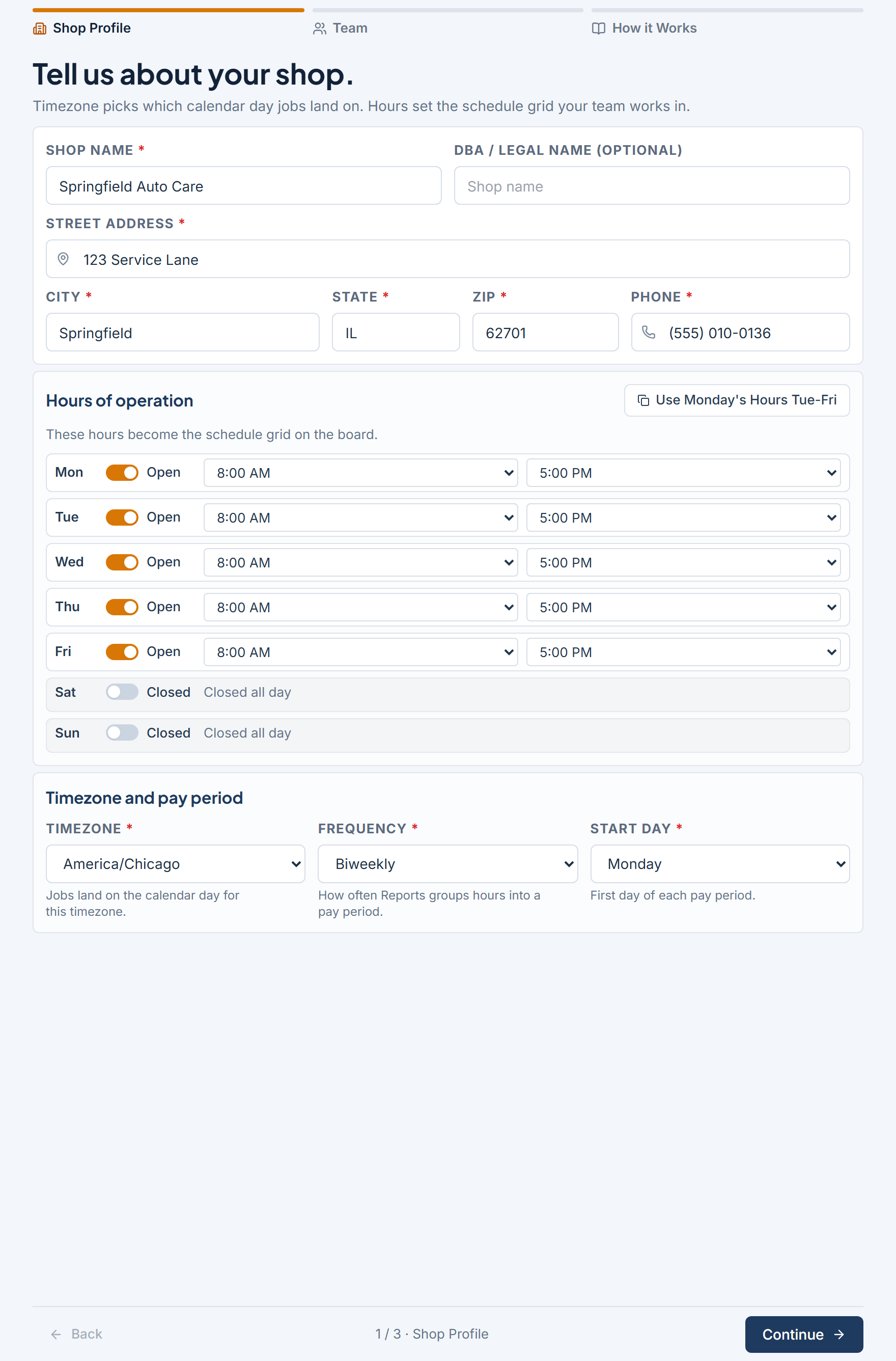
2
Team
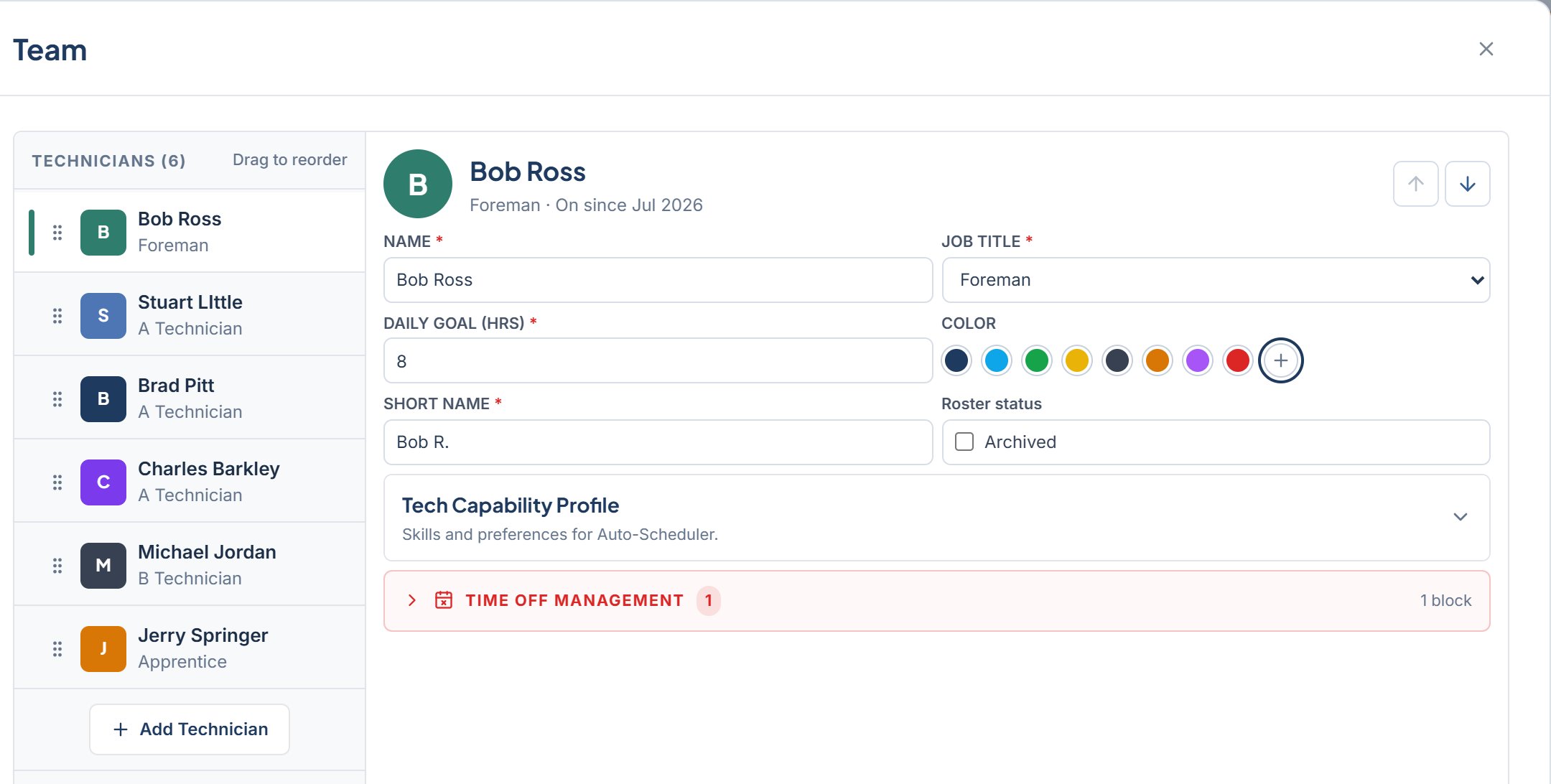
Add the people on your board. Each person you add becomes a column on the board.In Add someone to the board, enter Full Name, Short Name, Tier (Foreman, A Tech, B Tech, or Apprentice), Daily Hours, and a Color. Click Add Technician. Repeat for each person. The Team list shows everyone you have added.This is the roster only. Account access is managed separately, after setup, in Settings > Users. You can click Continue with an empty roster and add technicians later.
3
How it Works
Review how BayBoard organizes work. Type is what the work is. Status is where it is now. Both lists are fixed, open, and ready to use.Check I agree to the Terms of Service and Privacy Policy, then click Finish Setup. Use Back if you need to change an earlier step on this screen.