
Drag it onto the board
1
Pick up the card
Press and drag a card in the Unassigned panel, the list on the right side of the board.
2
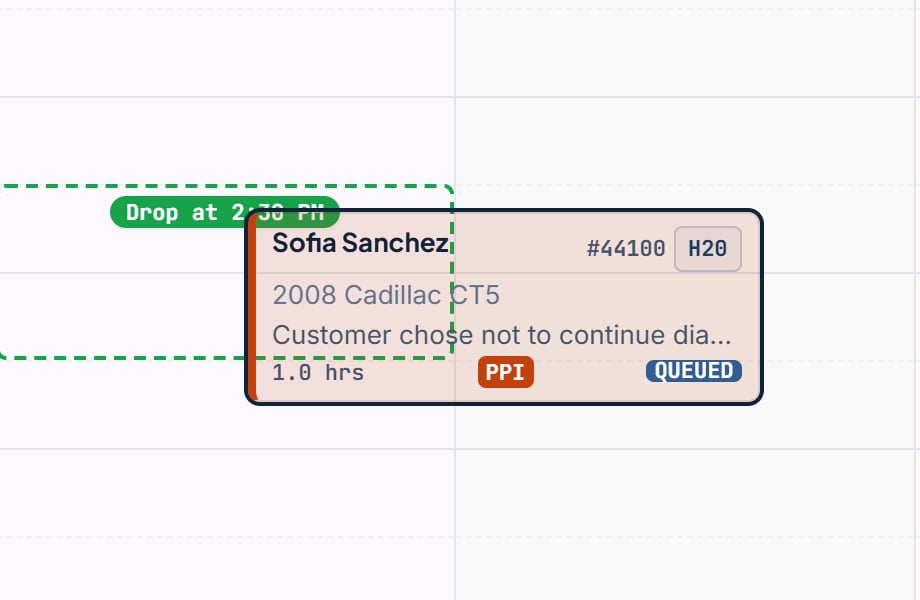
Hover over a technician column
A dashed preview follows you. Green with “Drop at 9:30 AM” means the slot works. Red with “Will not fit” means it does not.
3
Drop
Release on a green preview. A toast says “Assigned to the board.” and the status becomes Assigned on that job card.
Assign from Edit Job
Job Details has no assign button. To assign without dragging, open the card, click Edit Job, set Technician and Tech Start Time, then click Save Changes. The job lands on the day you are viewing.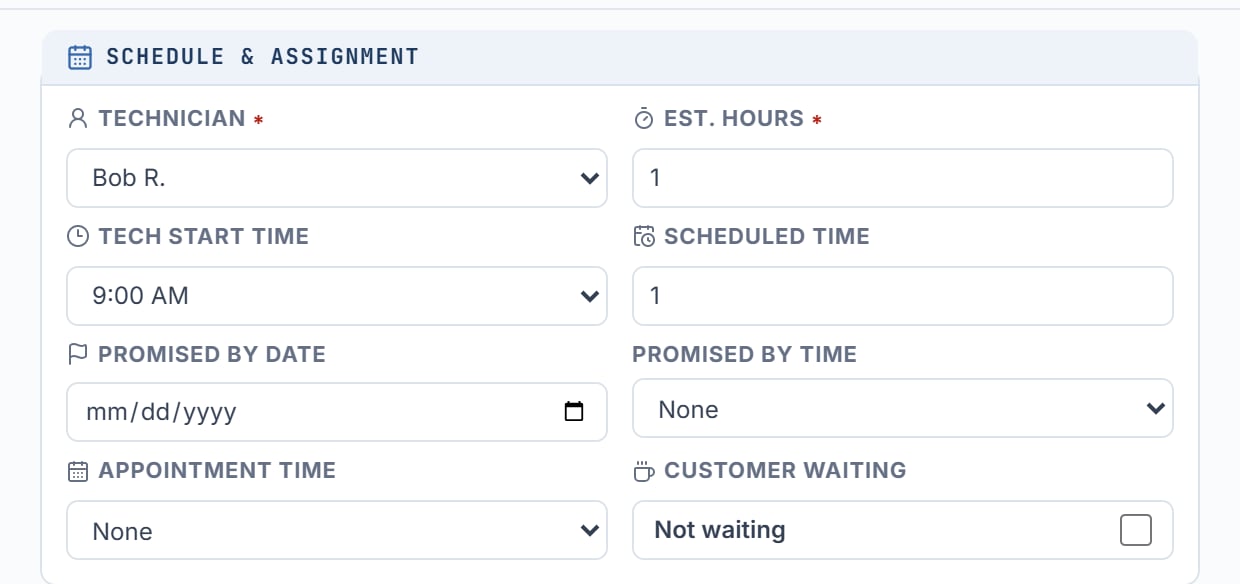
Dropping on top of another job
If you drop onto a slot that already has a job, BayBoard pushes that job and any below it later in the day. The toast reports it: “Moved. 1 job shifted down to fit.” or “Moved. N jobs shifted down to fit.”When a drop is rejected
The card snaps back and a toast explains why.- “Past days are read-only.” Leave the past day.
- “That drop is outside the day’s configured open hours.” Drop the card between shop open and shop close on that day.
- “That block would end after closing.” Pick an earlier start time, or shorten Est. Hours.
- “A scheduled block must be at least half an hour.” Set Est. Hours to 0.5 or more before you drop the card.
- “That time is unavailable for this technician.” The tech has time off. Pick another time, or pick a different technician.
- “That block overlaps another job on this technician.” Drop in open space, or onto a job so later jobs shift.
- “That drop lands inside another job.” Drop at the start of the other job, not in the middle of that other job.
- “That would shift a completed job.” Completed jobs stay put. Pick a different open slot farther up that technician’s column.
- “Not enough room below to fit before closing.” The push-down runs past closing. Pick an earlier start time on the day.
- “That would push a job into blocked time.” The push-down hits time off. Pick another slot, or pick a different technician.
Undo
Every assign, move, and resize toast has an Undo action for 10 seconds. If the board changed in the meantime, you see “That undo no longer fits. The board has changed.” If a change fails to save, the toast says “The change failed. The previous board was restored.” with a Retry action.Unassign a job
Drag a scheduled card onto the Unassigned panel. Or open the card and click Unassign in Job Details. Unassign only appears for jobs on the day you are viewing that are not Completed.Why drag is off
A lock chip in the Unassigned header explains it:- “Closed days are read-only.”
- “Past days are read-only.”
- “Your role is read-only here.”
- “Payment past due. Update your payment method to restore full access.” Update Billing to restore the board.