
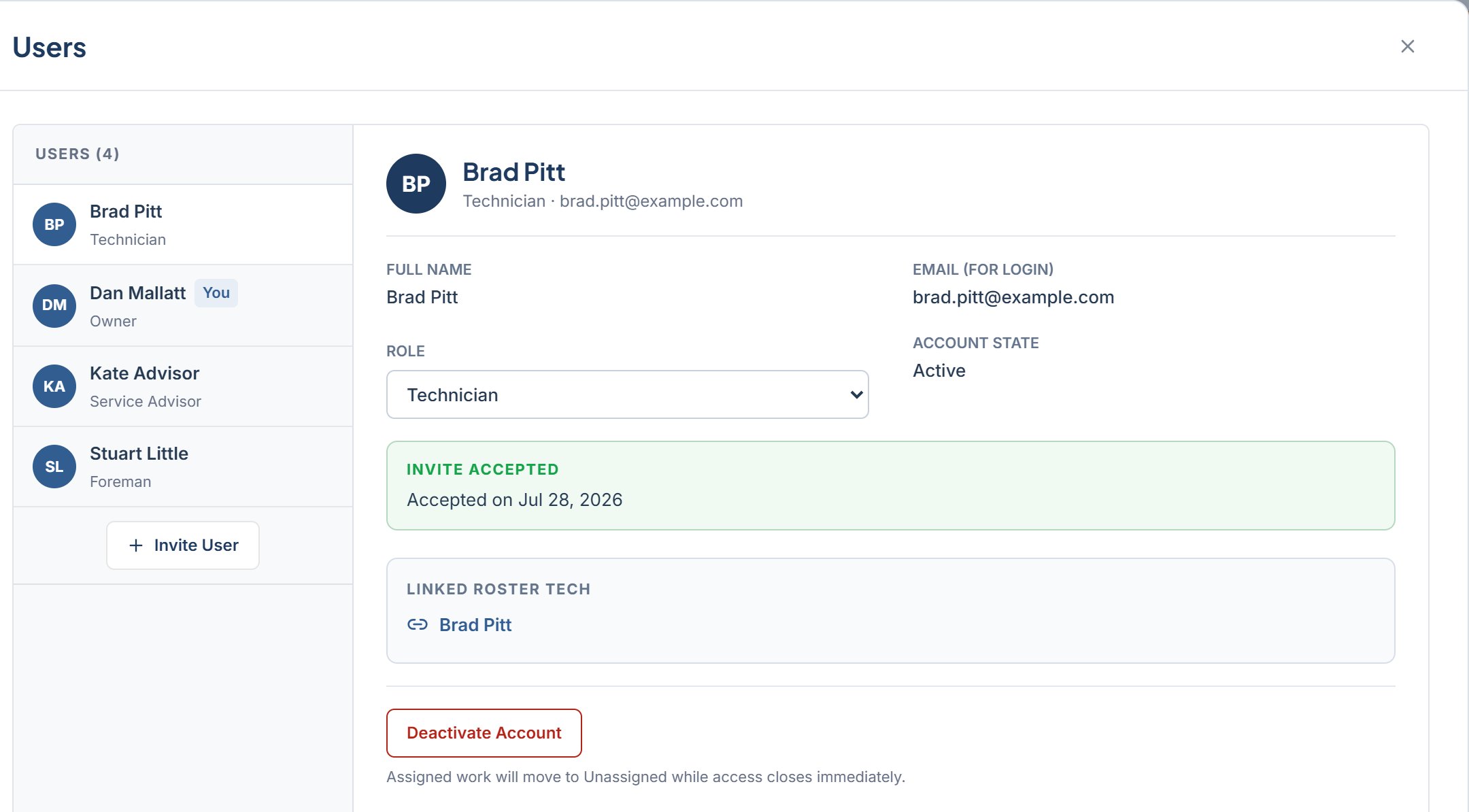
Member detail
Below the fields, a Linked roster tech card shows the technician column this account is connected to. Click it to open that technician in Team. If it reads “Not linked”, the card explains “This person sees the setup-incomplete state until a roster tech is linked.”
Change a role
1
Open the member
In Settings > Users, click the person.
2
Pick a new role
Change the ROLE select.
3
Confirm
A dialog asks “Change [name]‘s role?” with “This changes [name]‘s access to [Role].” Click Change Role.
Deactivate an account
1
Open the member
In Settings > Users, click the person.
2
Click Deactivate Account
A dialog asks “Deactivate [name]‘s account?” If the account is linked to a roster technician, the dialog warns that assigned work will move to Unassigned. Confirm the dialog to continue with the change.
Deactivating an account does not archive the roster technician. The column stays on the board. To remove the column as well, see Archive or restore a technician.