
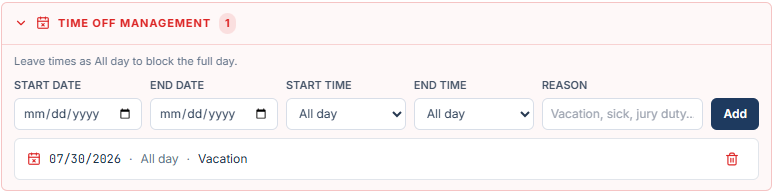
Add a block
1
Open Time Off Management
Service Advisor and Foreman: open Settings and pick Time Off. Owner / Admin and General Manager: open Settings, pick Team, and click the technician. The panel intro reads “Block a tech out for a full day or part of a day.”
2
Pick the technician
On the Time Off tab, pick the person in the TECHNICIAN list on the left. Archived technicians are not listed. In Team, you already picked them.
3
Fill in the fields
4
Click Add
Click Add. The block appears in the list under the form.
All day or part of a day
Leave START TIME and END TIME as All day to block the full day. The hint reads “Leave times as All day to block the full day.” Pick a start and end time to block only part of the day, for example a morning appointment. A block can cover up to 31 calendar days. For a longer absence, add more than one block.Validation messages
- “Choose a start date.” Pick a START DATE.
- “Enter a reason for the time off.” Fill in REASON.
- “End time must be after start time.” Pick a later END TIME.
- “End date cannot be before start date.” Move END DATE to the start date, or to a later calendar date than START DATE.
- “Time off ranges cannot exceed 31 calendar days.” Shorten the range, or split it into two shorter blocks on the calendar.