Set a promised time
1
Open the job editor
Click the card, then click Edit Job. For a new job, use Add New Job at Unassigned.
2
Fill both promise fields
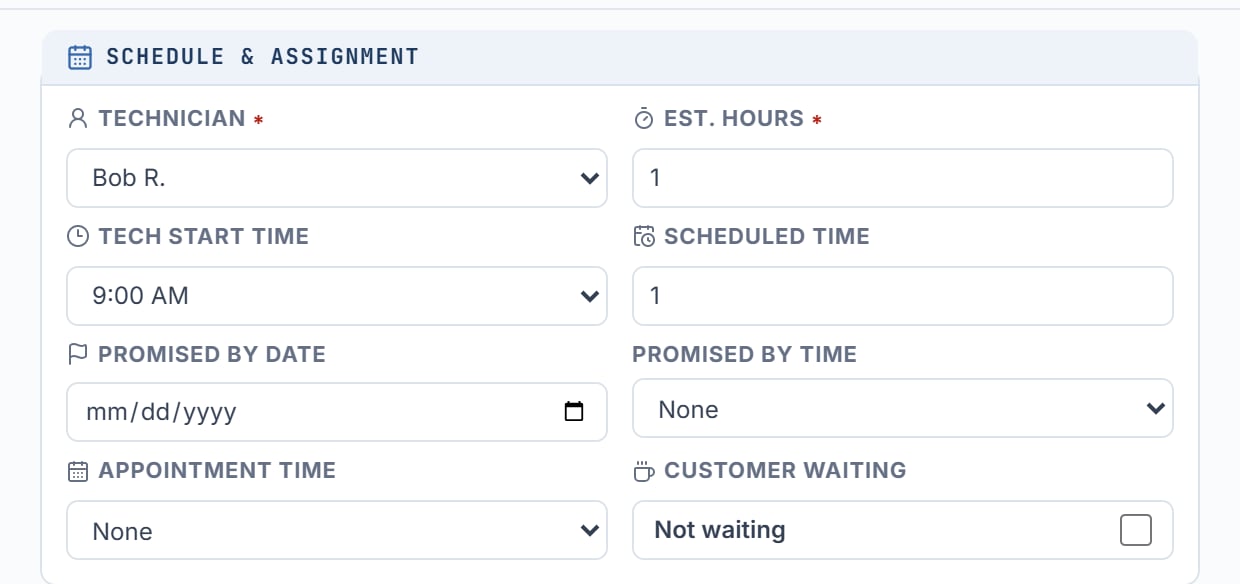
Under Schedule & Assignment, set Promised By Date and Promised By Time. Times are the shop’s 30-minute slots. You must set both or neither. Leaving one blank shows “Promised By date and time must both be selected.”
3
Save
Click Save Changes.
How it shows on the board
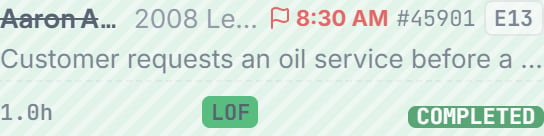
- Cards of one hour or longer show a red flag with the time, such as “Promised by 3:00 PM” on the card.
- If the promise is on a different day than the board you are viewing, the date comes first: “8/14 3:00 PM”.
- 30-minute cards show a red flag icon on the name row when a promise is set. The icon has no time text. Hover it for the exact time, such as “Promised by 3:00 PM”.
- A waiting customer gets a red coffee mug icon on the same row. Both icons can show on one 30-minute card.