
Open System Status
Click Support in the left rail, then System Status.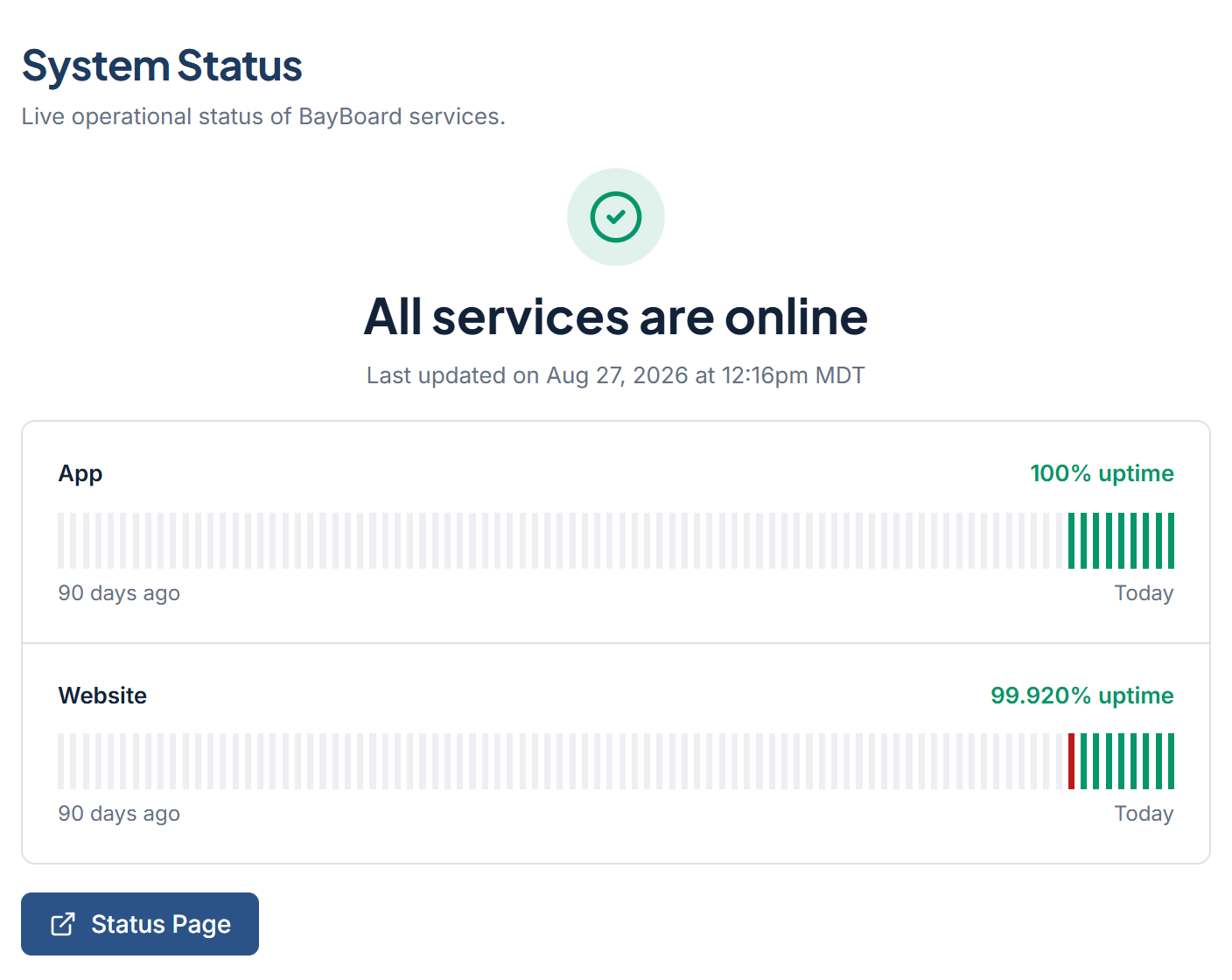
What the screen shows
The headline at the top is one of four states:- All services are online
- Some systems are experiencing issues
- Some systems are down
- Some systems are under maintenance
Click Status Page to open status.bayboard.io in a new browser tab.
If the status cannot load
The screen shows “Can’t load status” and “Open the public status page for the current state. This screen never assumes BayBoard is operational.” This screen never guesses that BayBoard is up. Click Status Page to check status.bayboard.io directly.If the board is down
1
Check System Status
If the headline says systems are down or under maintenance, the BayBoard team already knows. Watch status.bayboard.io for the latest status.
2
Contact Support if status looks fine
If all services show online but your board still will not load, send a ticket from Contact Support. Set the Priority field to Urgent (board down) before you send.