
Add the technician
1
Open Settings > Team
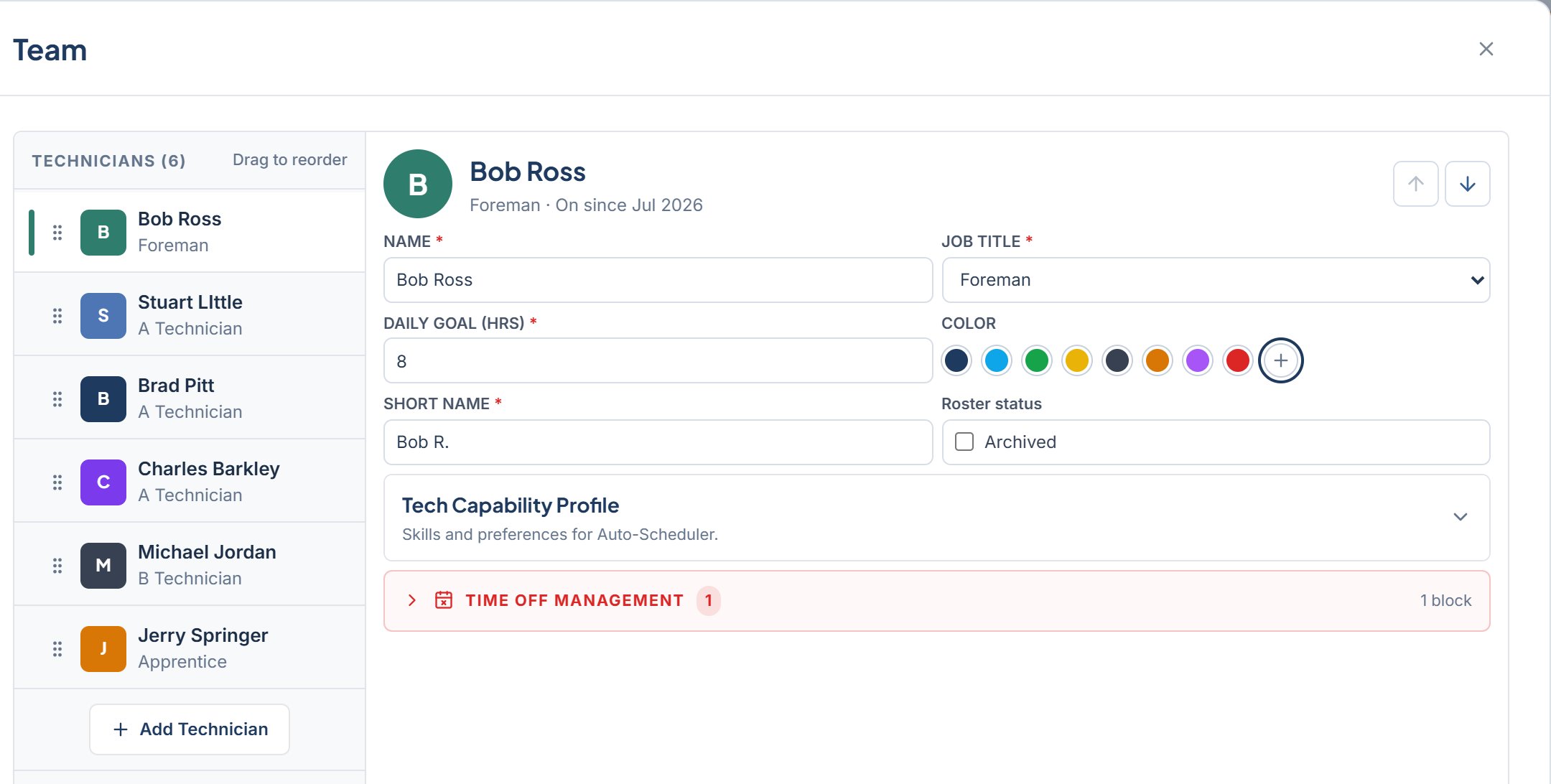
Open Settings from the left rail and pick Team. The left side lists TECHNICIANS with a count. If the roster is empty you see “No roster technicians” and “Add a roster record to create a schedule column.” Use Add Technician after that empty state.
2
Click Add Technician
Click Add Technician. The detail panel shows “Fill in details to add”. Fill NAME and the rest of the fields.
3
Fill in the fields
- NAME The technician’s full name. Required.
- JOB TITLE Foreman, A Technician, B Technician, or Apprentice. Pick one title. This field is required.
- DAILY GOAL (HRS) Target hours per day, 0.5 to 24 in half-hour steps. Required. Shown on the Shop Performance strip at the bottom.
- COLOR Pick one of the eight swatches, or pick a Custom color for the column.
- SHORT NAME The label at the top of the column. Type a short label. This field cannot be left blank.
4
Save
Click Save Changes. The technician appears in the list and a new column opens on the board for them.
Reorder the roster
Board columns follow the order of the roster list. Drag a technician to a new spot, or use Move Up and Move Down next to their name. The list pages with Previous and Next when it gets long.What other roles see
Service Advisor and Foreman can open the Team tab but cannot change it. They see “View only. The tech roster is managed by the Owner or GM. Need to log time off for someone? Use the Time Off tab.”If you leave the tab with unsaved edits, BayBoard asks “Discard unsaved changes?” Choose Keep Editing to go back or Discard Changes to drop them.