
Archive a technician
1
Open the technician in Settings > Team
Open Settings from the left rail, pick Team, and click the technician in the list.
2
Check Archived
Under Roster status, check the Archived box.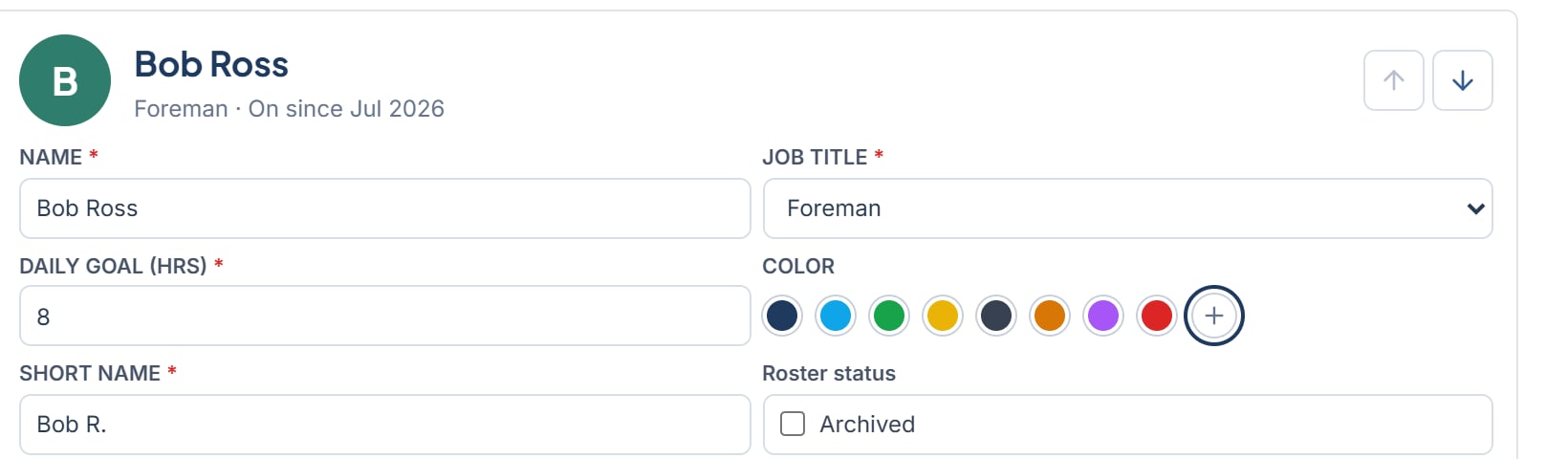
3
Confirm
A dialog asks “Archive this technician?” with the text “This technician moves off the schedule board and out of Auto-Schedule. Their finished work stays in reports, and you can restore them here at any time.” Click Archive to continue or Cancel to leave that technician on the roster.
4
Save
Confirming only marks the change. Click Save Changes to apply it. The list entry then shows “Archived” next to that person’s job title.
What happens
- The technician’s column leaves the board.
- Auto-Schedule no longer places jobs on them.
- They no longer appear in the TECHNICIAN list for time off.
- Finished work stays in reports.
A linked user account is not changed by archiving. To stop someone from signing in, deactivate the account in Settings > Users.
Restore a technician
1
Open the archived technician
In Settings > Team, click the technician in the list.
2
Uncheck Archived
Clear the Archived box. Restoring does not ask you to confirm.
3
Save
Click Save Changes. The column returns to the board.