
Sign in
1
Open the sign-in page
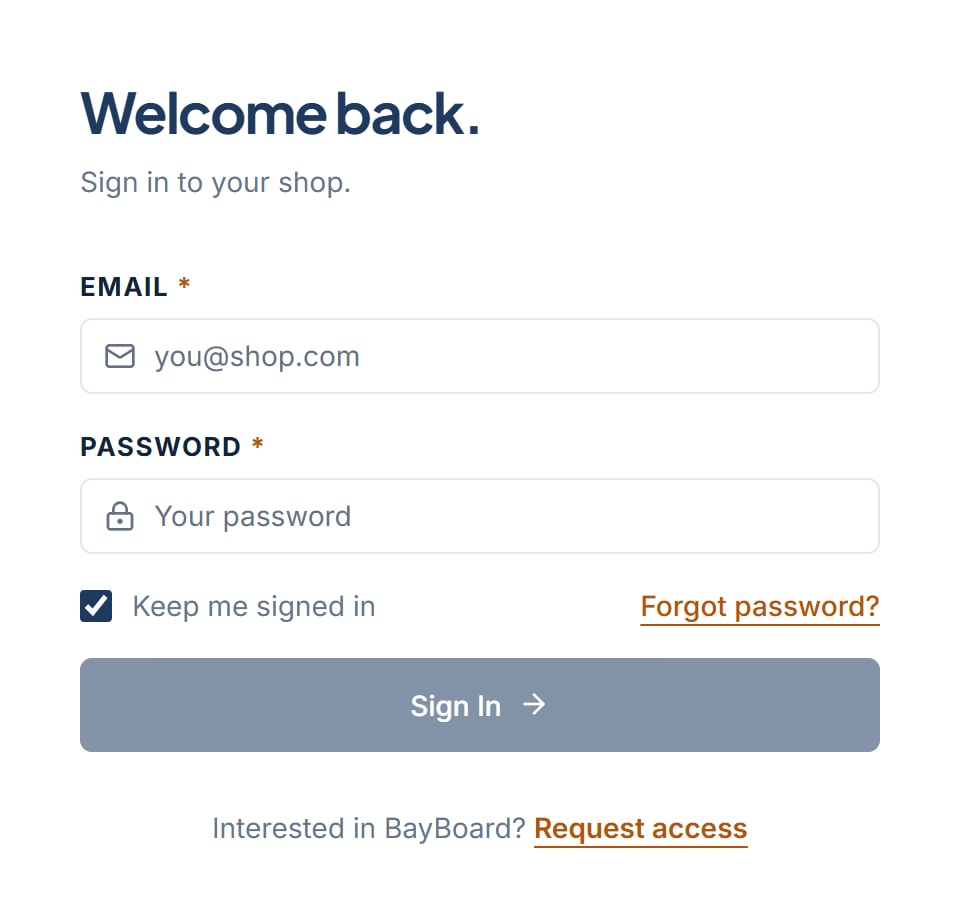
Go to the BayBoard sign-in page. It reads “Welcome back.” and “Sign in to your shop.” Enter the email from your invite.
2
Enter your email and password
Type the Email you were invited with and your Password.
3
Choose whether to stay signed in
Keep me signed in starts checked. Leave it checked on your own device. Uncheck it on a shared shop computer.
4
Click Sign In
Click Sign In. You land on the schedule board.
Forgot your password
1
Click Forgot password?
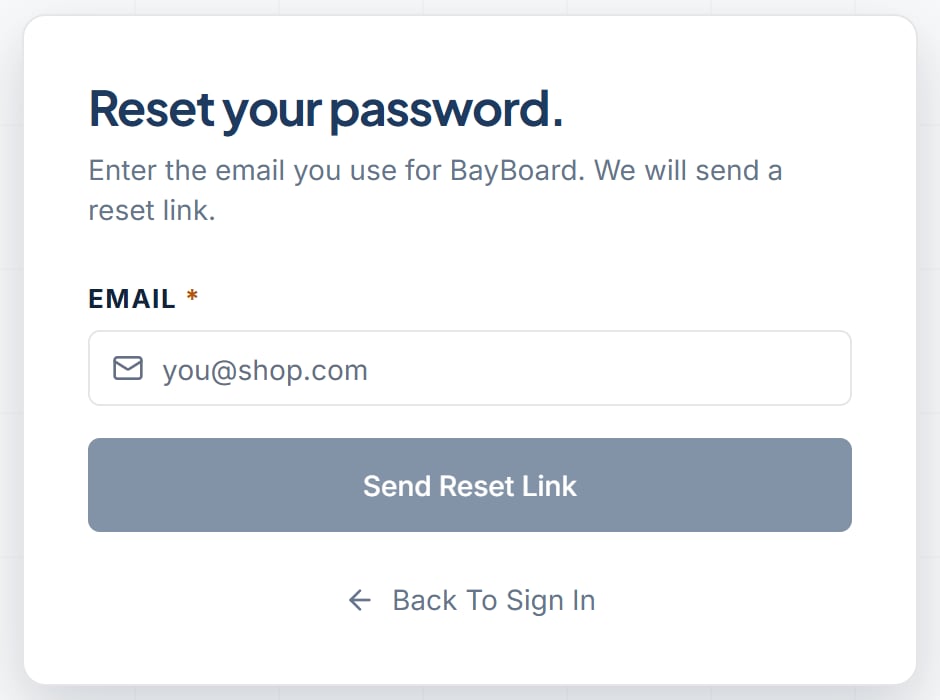
On the sign-in page, click Forgot password?. The page reads “Reset your password.” Enter that account’s email.
2
Send the reset link
Enter your Email and click Send Reset Link. The page changes to “Check your email.” It reads “If an account uses [email], a password reset link is on its way.”
3
Open the link and choose a new password
Open the email and click the link. On the “Choose a new password.” page, enter and confirm your new password. When you see “Password updated.”, sign in with that new password on the next sign-in screen.
Messages you might see
- “Your account has been deactivated.” Your shop admin turned off your access. Ask your Owner / Admin or General Manager to turn it back on.
- “You’ve been signed out” Your session ended. Click Sign Back In and enter the password for this account.
- “You don’t have access” That page is not available for your role. Click Back to Schedule. Contact your shop admin if you think this is a mistake.