
Send the invite
1
Open Settings > Users
Open Settings from the left rail and pick Users. The header shows “Users (n)”.
2
Click Invite User
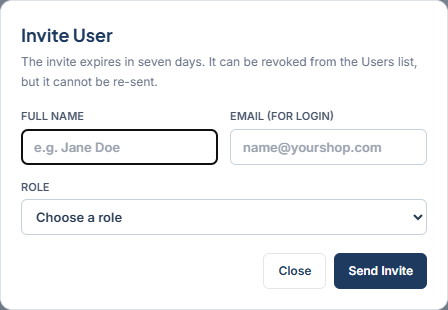
Click Invite User. The dialog opens with the note “The invite expires in seven days.”
3
Fill in the fields
- FULL NAME The person’s name, 100 characters or fewer.
- EMAIL (FOR LOGIN) The address they will sign in with. The invite is sent to this email address on file.
- ROLE General Manager, Service Advisor, Foreman, or Technician. Pick one role.
4
Link a roster tech (Foreman and Technician only)
When you choose Foreman or Technician, a LINK TO ROSTER TECH field appears. It lists “Not linked” and every roster technician that is not already linked to an account.The app explains: “This link, not the email address, connects the account to a schedule column. Pick the roster record this person works. Selecting none is allowed, but the person will see setup-incomplete until linked.”If they are not on the roster yet, add them in Settings > Team.
5
Click Send Invite
Click Send Invite. On success you see “The invitation email to [email] is on its way.” The person now appears in the Users list with an Invite pending chip.
Resend or revoke an invite
Click a pending invite in the Users list. The detail shows Full name, Email, Role, Sent, Expires, and an Intended roster tech card.- Resend Invite emails a fresh link. The confirm reads “Resend [name]‘s invite?” Click confirm to send it.
- Revoke Invite cancels the invite. The confirm reads “Revoke [name]‘s invite?” Click confirm to cancel it.
Invites expire after seven days. If one expires, send a new invite to the same email.