
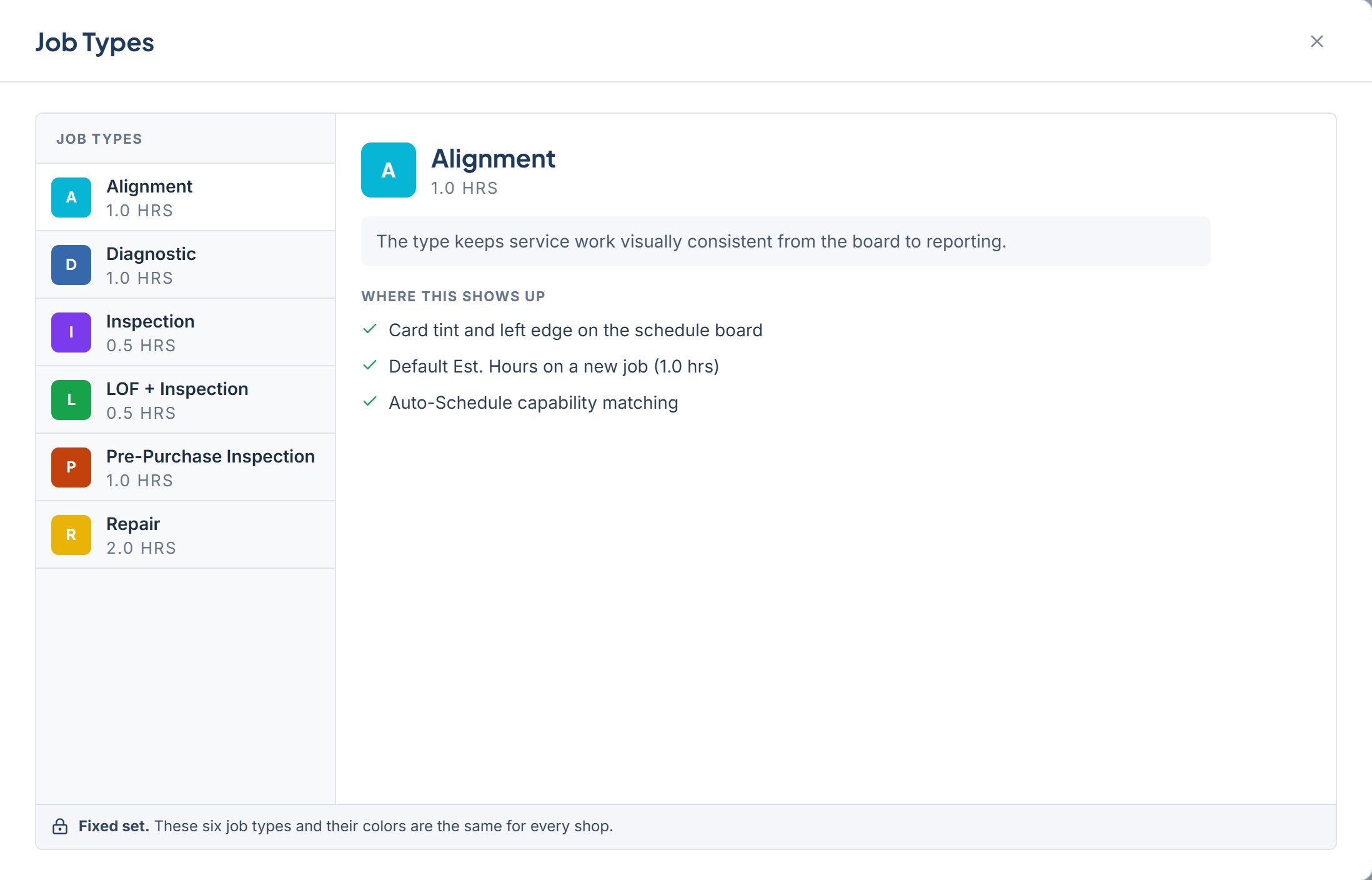
Open Job Types
1
Open Settings
Open Settings from the left rail.
2
Pick Job Types
Click Job Types in the Settings list. The dialog title reads Job Types.
The pane layout
The left side lists Job Types with six rows. Each row shows the type name, its default estimated hours, and a color swatch. Click a row to show its detail on the right. The detail panel shows the name, default hours, a short description, and a Where this shows up list. A footer bar at the bottom reads Fixed set. These six job types and their colors are the same for every shop.The six job types
Every type shares this description: “The type keeps service work visually consistent from the board to reporting.”
When you click a type, Where this shows up lists three bullets:
- Card tint and left edge on the schedule board
- Default Est. Hours on a new job, with that type’s hours in parentheses
- Auto-Schedule capability matching